


If you want to trade on Hyperliquid without managing each account and order individually and automate your trading directly on the DEX, in this Finestel tutorial, we explain how to do it. Finestel’s Hyperliquid trading tools let you connect multiple accounts, place trades manually, automate strategies using the Signal Bot and TradingView Bot, copy trades, execute advanced order types such as DCA and TWAP, and monitor portfolio performance from a single dashboard.
The same infrastructure also works for asset managers managing multiple client accounts through Finestel’s White Label solution. Whichever workflow you choose, start with a small allocation, verify your execution settings, and scale only after confirming that everything behaves as expected. You can follow this whole tutorial on the free Starter plan, which includes multiple Hyperliquid accounts.
What Can I Do with Finestel’s Hyperliquid Bot?
Hyperliquid is one of the most popular DEXs today, and Finestel has integrated it natively into its platform. With Finestel’s Hyperliquid bot, you can execute trades, automate strategies, and manage multiple accounts from a single dashboard without having to switch between different tabs.
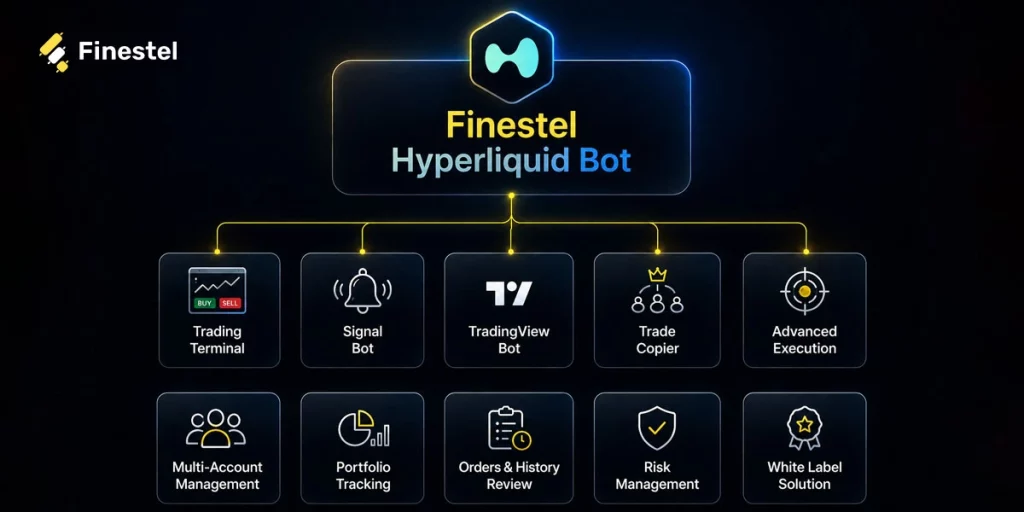
Depending on your preferences and needs, you can:
- Trade manually through Finestel’s Trading Terminal without switching back to the Hyperliquid interface.
- Automate trade execution with Signal Bot alerts from your own strategy or any webhook source.
- Connect TradingView alerts to Hyperliquid and automatically turn them into orders.
- Copy trades across multiple Hyperliquid accounts using Trade Copier software.
- Use advanced execution strategies, including DCA and TWAP, and apply risk-management controls with a few clicks.
- Place the same order on multiple accounts at once, yours or your clients’, manually or through bots, which is particularly useful for professional traders, asset managers, and trading teams.
- Track your portfolio and account performance, including overall profit and loss across connected accounts.
- Review orders and trading history to monitor previous executions and account activity.
- Offer Finestel’s features under your own brand with our White Label solution and provide all the trading, automation, and account management tools to your clients through a branded platform.
In the following sections, we will go through each of these workflows and show you how to set them up inside Finestel’s dashboard.

How to Add Your Hyperliquid Account to Finestel
Adding your Hyperliquid account to Finestel takes three steps:
- Generate your API key
- Add the account on Finestel
- Approve the builder fee
Once you select Hyperliquid in the Finestel dashboard, the connection process is explained step by step. Here, we will walk you through the same process in more detail:
Step 1: Connect a Wallet to Hyperliquid and Generate the API Key
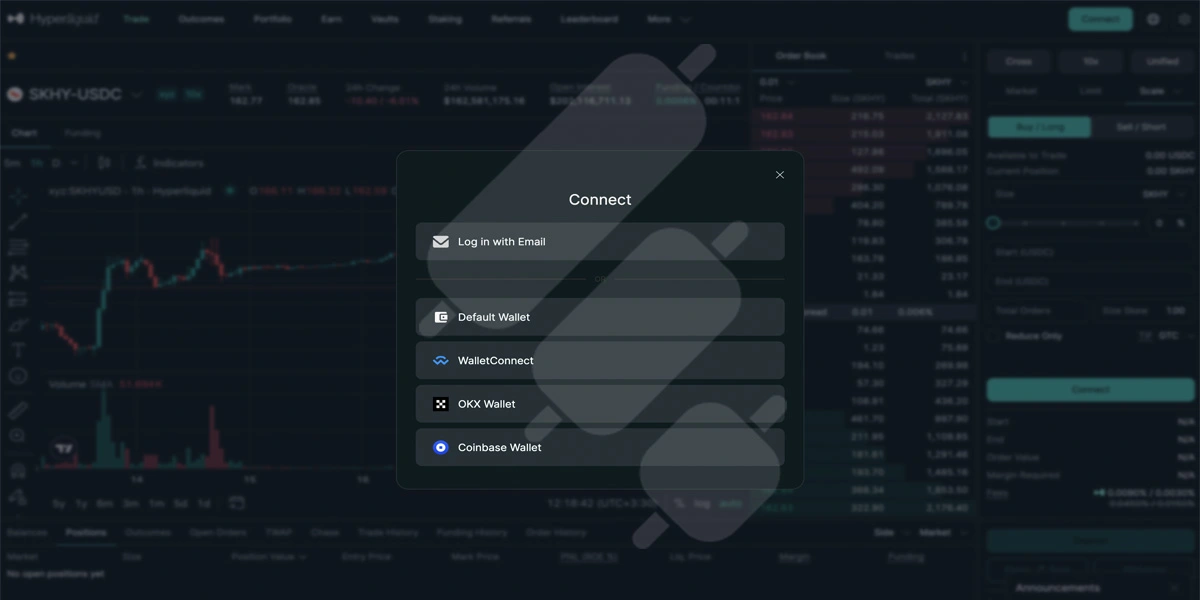
Go to Hyperliquid and click “Connect” in the upper-right corner to connect your wallet. Choose your wallet and complete the process. You will need to sign the connection request when using a non-custodial wallet. No gas is required for this signature.
Note that before creating the API Wallet, you need to deposit some crypto to your account.
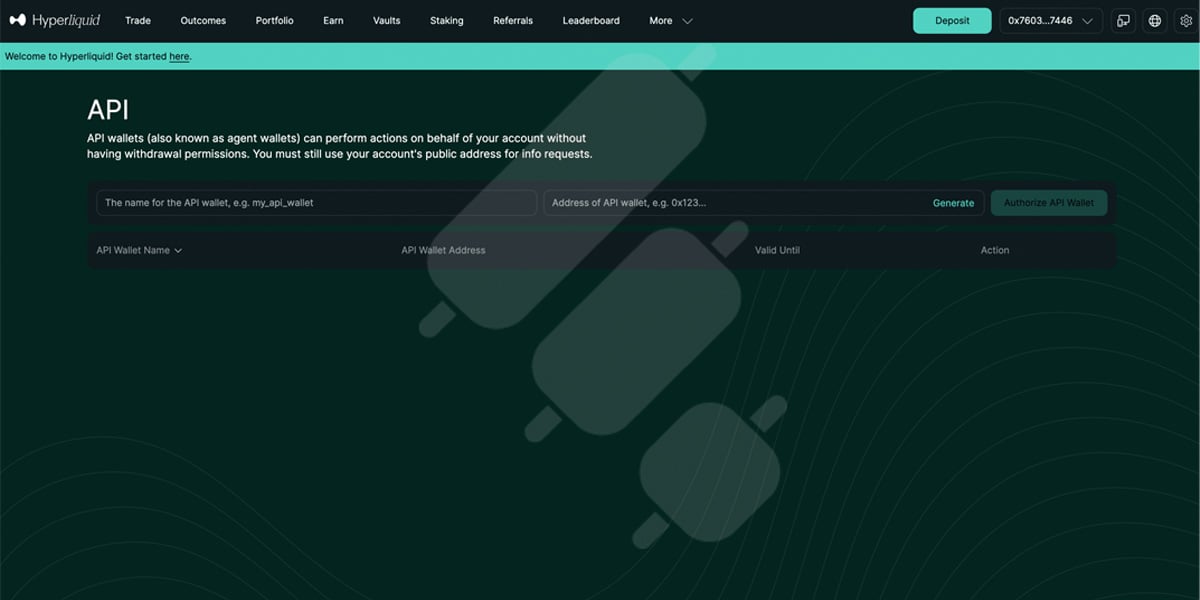
Then, from the top navigation bar, click “More” and select “API.” On this page, choose a name for your wallet and click “Generate” in the box on the right to create the API wallet address. Then, click the “Authorize API Wallet” button.
Be sure to save both the API wallet address and the randomly generated private key shown in the pop-up window. The private key will no longer be accessible once the wallet is authorized, so do not lose it.
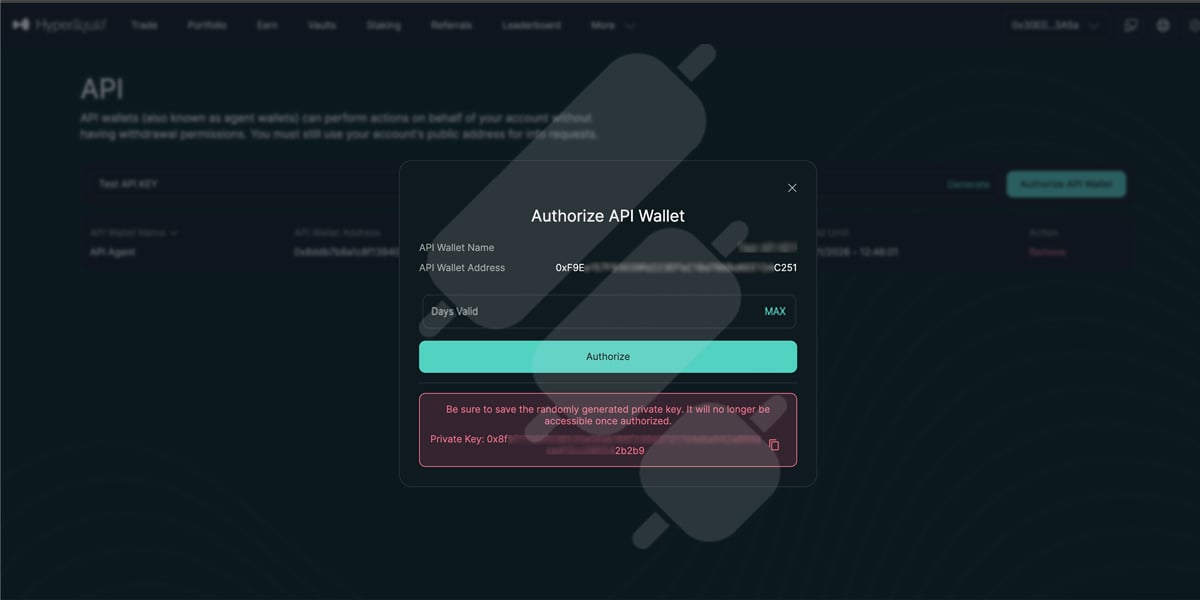
When you click “Authorize,” you may need to sign another request in your connected wallet. No gas is required for this signature
Step 2: Add Your Hyperliquid Account in Finestel
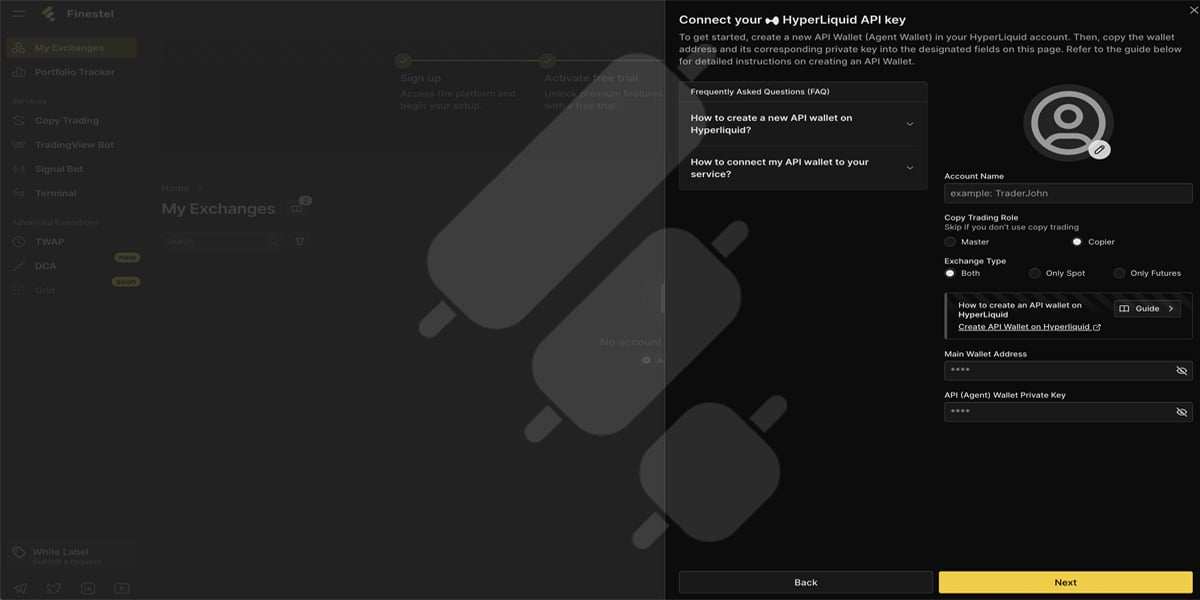
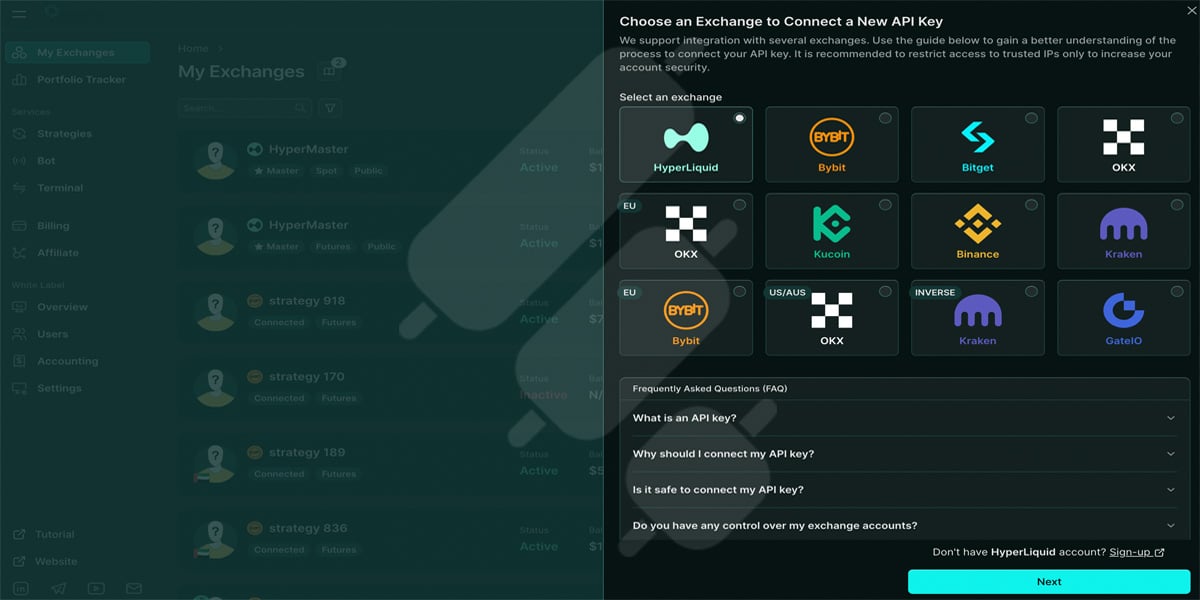
In Finestel, go to “My Exchanges” from the left-hand menu and click “Add Account”, then choose “Hyperliquid” from the list of supported exchanges and click “Next”.

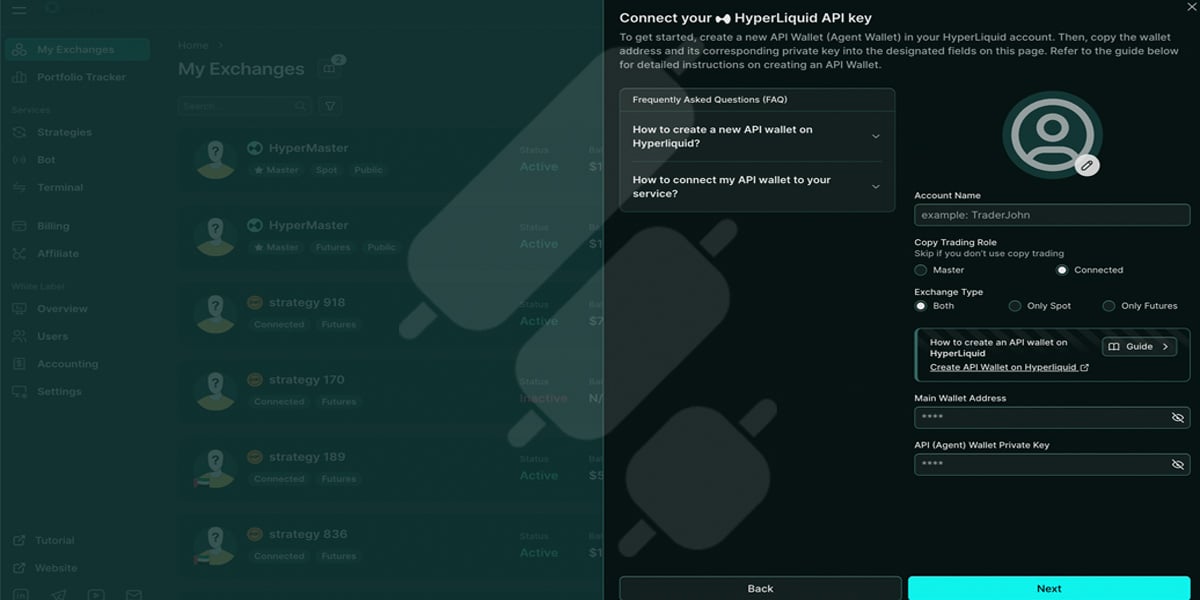
On the next screen:
- Choose an account name.
- Choose the copy trading role (skip if you do not need to use copy trading).
- Choose Spot, Futures, or Both as the exchange type.
- Enter your main wallet address and the API key you generated in step 1, then save the connection.
Step 3: Approve the Builder Fee
Finestel will prompt you to approve its builder fee before trading can go live. For this:
- Click “Approve Builder Fee” on your account.
- Connect the wallet associated with Hyperliquid using one of the available connectors that matches your wallet (e.g., MetaMask), and make sure you’re on the Arbitrum network.
- Sign the approval message. No gas is required for this signature.
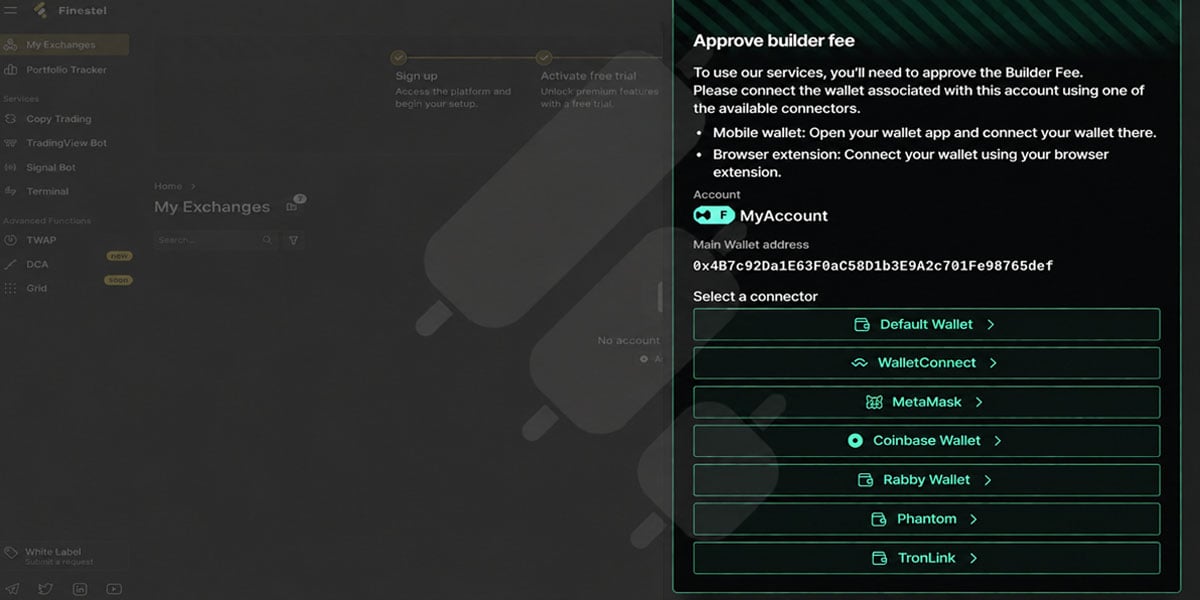
Once signed, Finestel verifies the approval on-chain, and the account status switches to Connected/Active. Now that you have added your Hyperliquid account in Finestel, you can use all the tools, bots, and execution strategies we provide.
How to Trade on Hyperliquid Using Finestel Trading Terminal
Finestel’s trading terminal lets you select several Hyperliquid accounts, or a whole Trading Group, and place the same order on all of them at once. You still decide when and how to enter or exit, but you do it once instead of account by account.
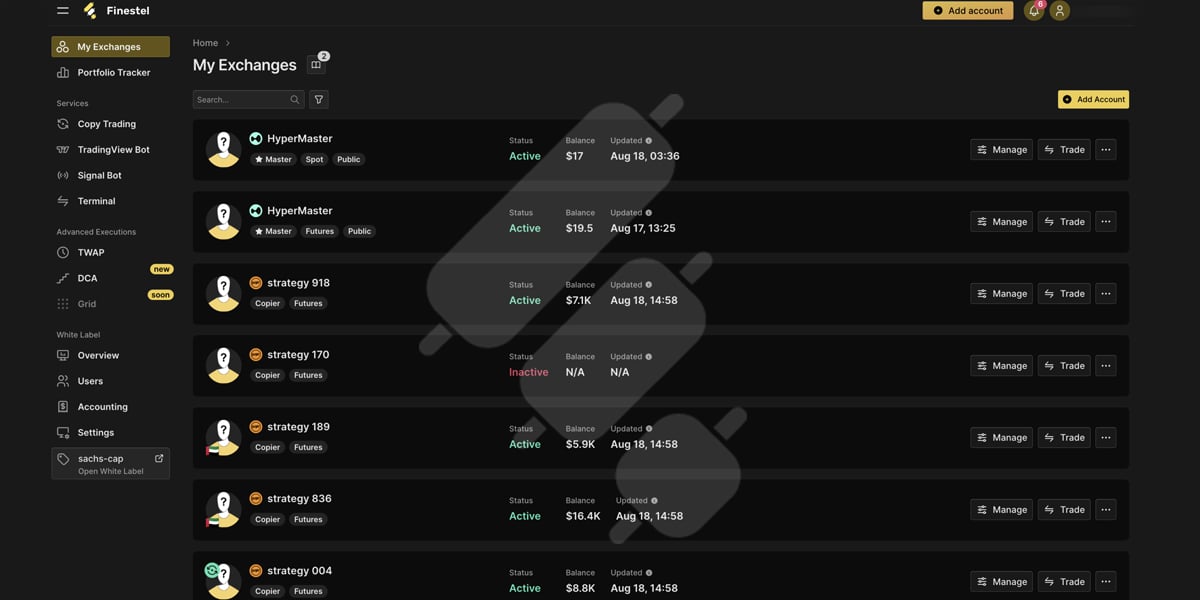
To start trading, go to “My Exchanges” and click the “Trade” button next to the Hyperliquid account you added earlier. On our dashboard, which you can see below, there are two accounts: one for spot trading and one for futures trading. In this example, we will choose the futures account.
Next, you will be directed to Finestel’s trading terminal, where you can place buy or sell orders.
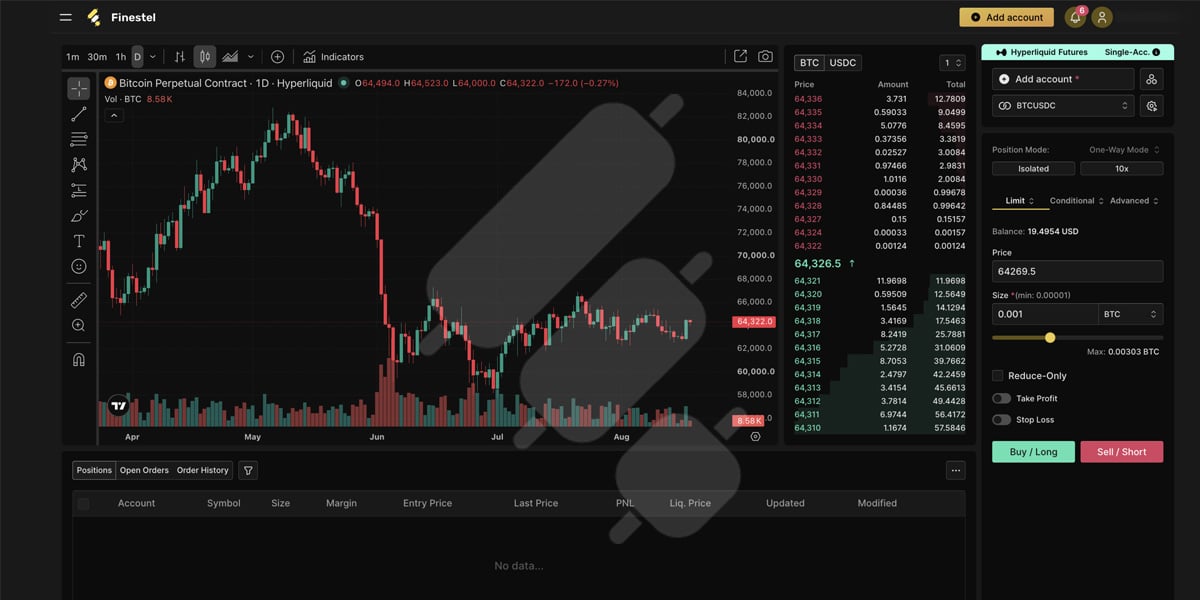
Here, you have different options for managing your trades:
1. Active Accounts and Trading Groups
By clicking the Multi-Account icon next to “Add account,” you can manage your active accounts and organize them into trading groups. This allows you to group accounts by client, strategy, exchange, or risk tier and execute trades across the entire group with a single selection.

You can also instantly switch between groups from the terminal and edit them at any time by adding, removing, or reorganizing accounts without affecting the rest of your setup.
There are two ways to do this:
- Select from the Interface: Go to “Manage Trading Groups”, create a new group, and check accounts from your activated list. Name the group and save it. This method is straightforward for smaller setups or when you are building groups incrementally.
- Import from Spreadsheet or Clipboard: Choose your exchange, then paste your account list from the clipboard or upload a CSV. The terminal maps the list instantly. This workflow is purpose-built for operations managing 50+ accounts, where manual selection is not practical.
2. Position, Hedging, and Order Executions

- If you choose a Spot account, these options will not be available, as they are only applicable to Futures trading:
- Under “Position Mode”, you can choose “Isolated” or “Crossed”.
- Hedging Mode is set to “One-Way” by default. This is because Hyperliquid currently supports one-way position mode for perpetual futures, meaning you cannot hold separate long and short positions on the same asset within the same account. You can also adjust the leverage based on the maximum supported for the selected market.
- For both Spot and Futures accounts, you can manage these options:
- The order execution methods you can choose include Market, Limit, Stop Market, Stop Limit, DCA, and TWAP. Scale and Grid are coming soon.
- It is also possible to set your own Stop-loss and Take-profit targets.
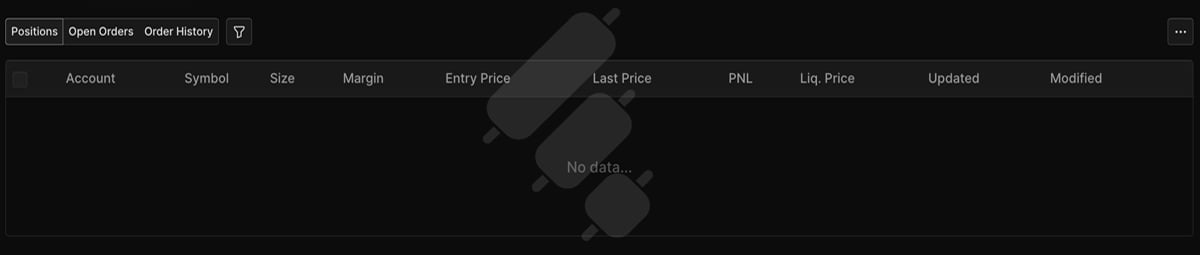
3. Managing Positions, Open Orders, and Order History
In the bottom section of the trading terminal, you can view and manage your Positions, Open Orders, and Order History.
How to Copy Trades Across Hyperliquid Accounts
Whether you are an individual trader running multiple strategies across your personal Hyperliquid accounts or an asset manager handling client accounts, Finestel’s Trade Copier lets you set up a master account and hundreds or even thousands of copier accounts. You can then automatically replicate trades from the master account across your copier accounts at the same time. The Trade Copier is part of the Pro plan ($79/mo, up to 5 accounts, free trial); Scale has custom account limits.
Step 1: Add Your Hyperliquid Master and Copier Accounts
This is the same process we explained earlier in the “How to Add Your Hyperliquid Account to Finestel” section.
As a quick recap, go to “My Exchanges” from the left-hand menu and click “Add Account.” Then, choose “Hyperliquid” from the list of supported exchanges and click “Next.”
On the next screen:
- Choose an account name.
- Choose the copy trading role. The Master is the main account where you execute your trades, while the Copier follows the Master and replicates its trades.
- Choose Spot, Futures, or Both as the exchange type.
- Enter your main wallet address and the API key you generated earlier, then save the connection.
Then, follow the same builder fee approval process explained earlier:
- Click “Approve Builder Fee.”
- Connect the wallet associated with your Hyperliquid account using one of the available connectors that matches your wallet (e.g., MetaMask), and make sure you are on the Arbitrum network.
- Sign the approval message. No gas is required for this signature.
Repeat the same process for each Master and Copier account you want to connect.
Step 2: Connect the Master and Copier(s) Accounts
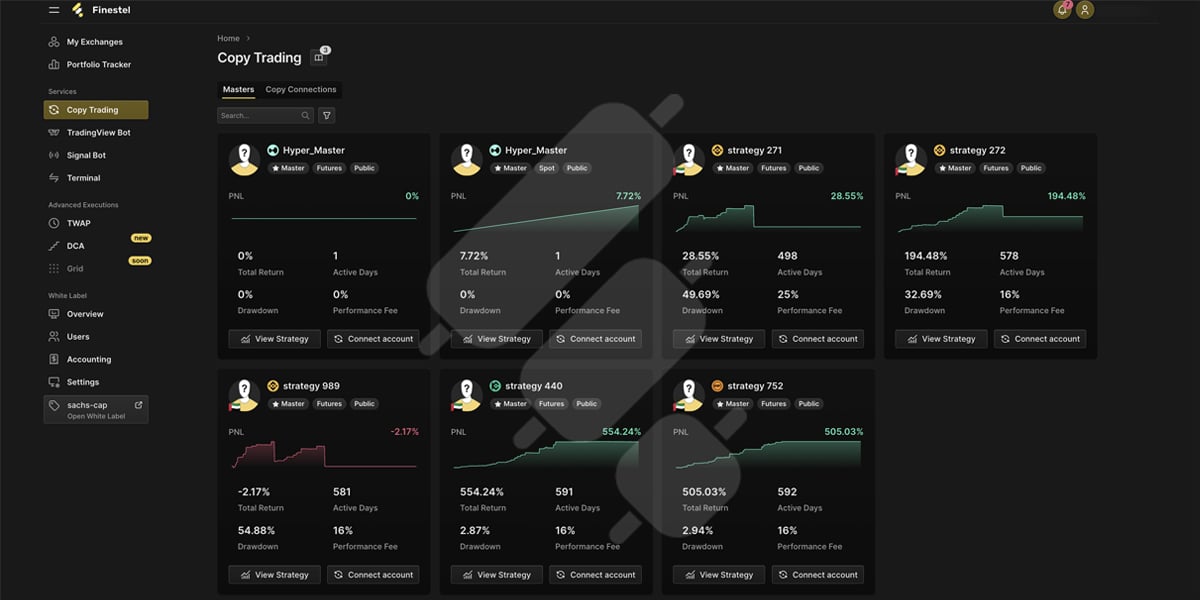
Now, click “Copy Trading” from the left-hand menu. The Master accounts you added earlier will appear here. Choose your desired Hyperliquid Master account and click “Connect Account.”
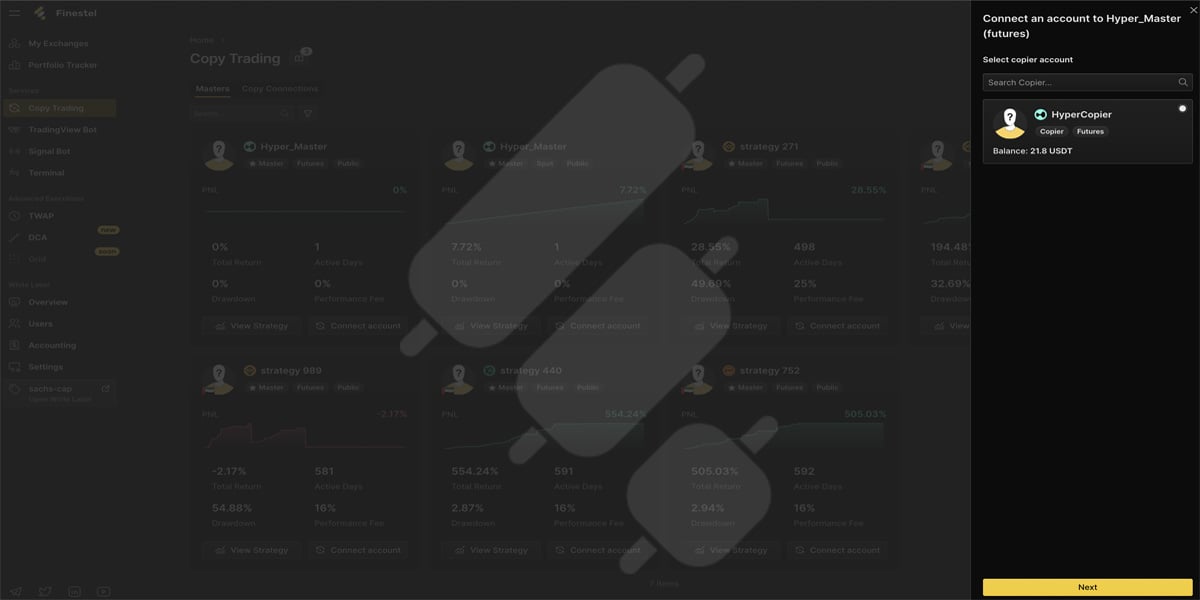
Then, select the Copier account(s) you want to connect from the available options in the pop-up window and click “Next.”
On the next screen, review the connection details, click “Connect Account,” and confirm the warning in the pop-up window to proceed.
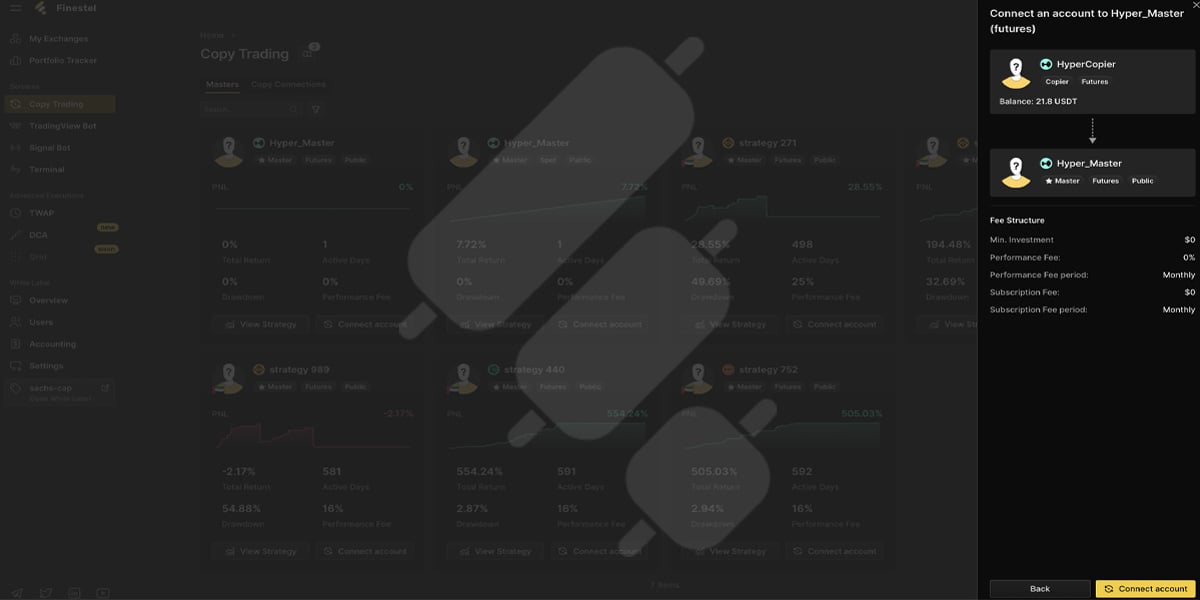
Your Master and Copier accounts are now connected. From this point on, trades placed on the Master account will automatically be replicated across the connected Copier account(s) according to your copy trading configuration.
How to Automate Hyperliquid Trades With Finestel’s Signal Bot
Every signal bot in Finestel gets its own webhook endpoint, allowing your strategy to send a JSON payload and trigger trades as soon as a payload arrives. This makes it suitable for Java/Python scripts, Pine Script strategies, webhook services such as n8n or IFTTT, or any other system capable of sending a POST request.
To do this, click “Signal Bot” from the left-hand menu and then select “Create Bot”. Then, fill in the settings:
- Give your bot a name.
- Choose the Exchange Type.
- Set Quote Currency and optionally add a Symbol Whitelist.
- Choose the Default Order Type.
- In the “Signal Terminal” section:
- Select Hyperliquid as the exchange.
- Choose the “Action” of the signal.
- Fill the rest of the fields based on the chosen “Order Type”.
- A JSON Payload will be created for your bot based on the previous settings. Copy this Payload along with the Webhook URL and add them to your signal source.
- Click “Initiate Bot”.
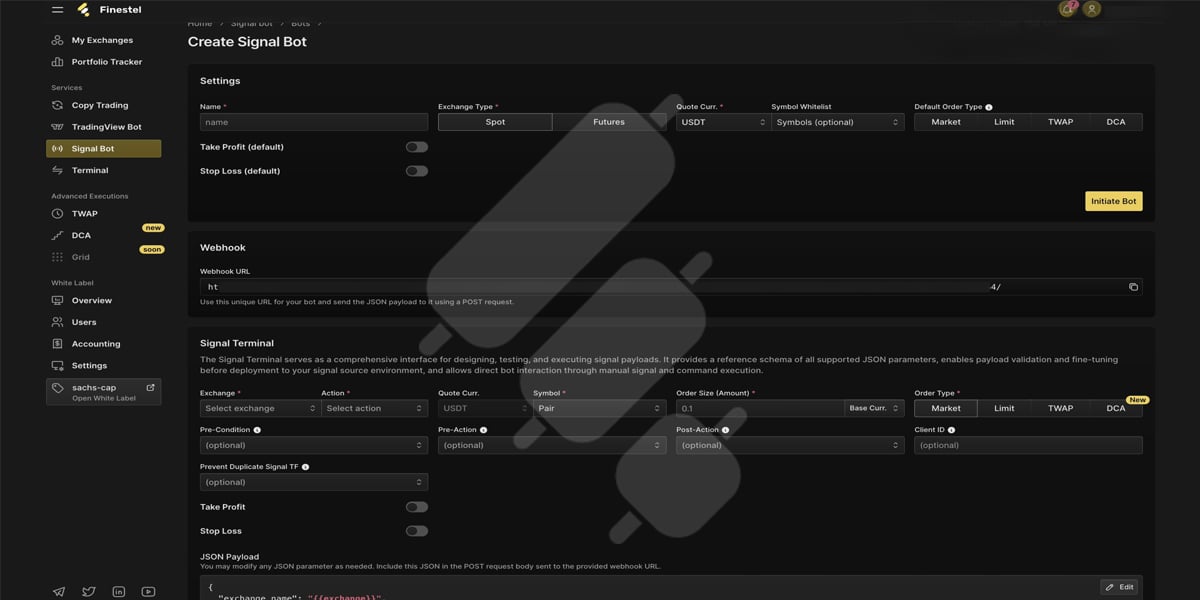
When an alert reaches the bot, Finestel places the order on every connected account at the same time.We have explained how to connect an IFTTT trading bot to Finestel, which you can use as an example.
How to Execute TradingView Alerts on Hyperliquid
Finestel’s TradingView bot connects your alerts to your Hyperliquid account. When your strategy fires an alert, the order is placed automatically on every linked Hyperliquid account, with no manual entry.
Create and Initiate The Bot
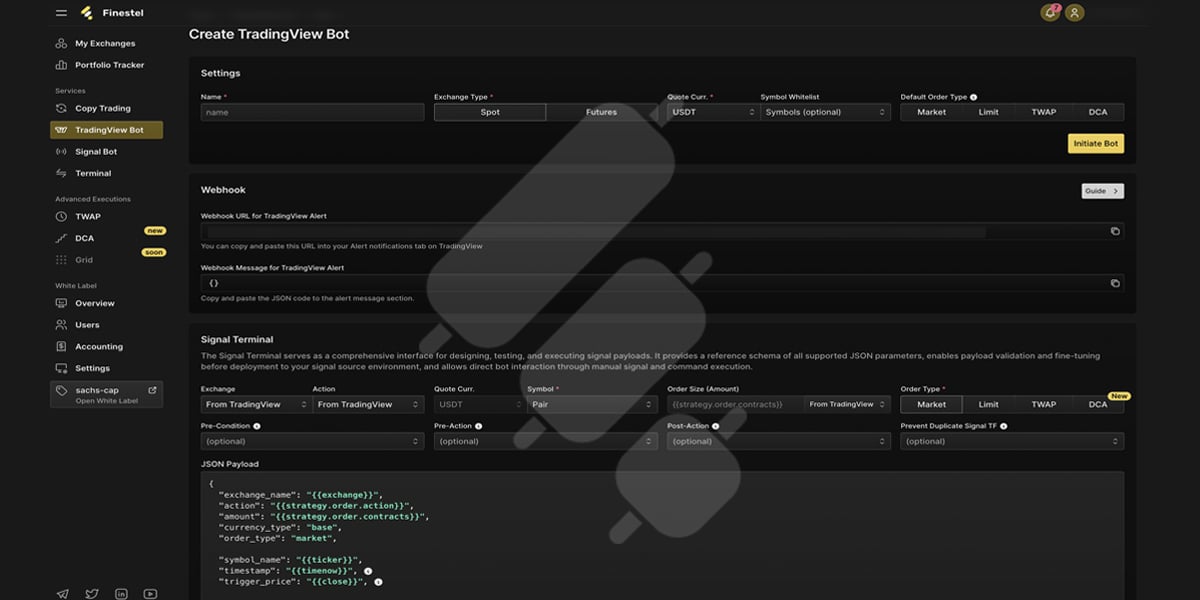
To start sending a POST request from TradingView indicators or strategies to your Hyperliquid account, the process is almost the same as setting up the Signal Bot. From the left-hand menu, click on “TradingView Bot” and then “Create Bot”. Then, fill in the settings:
- Choose a name for your bot.
- Choose the Exchange Type.
- Set Quote Currency and optionally add a Symbol Whitelist.
- Choose the Default Order Type.
- In the “Signal Terminal” section:
- Leave the “Exchange” and “Action” fields set to the default “From TradingView” option.
- Fill the rest of the fields based on the chosen “Order Type”.
- A JSON Payload will be created for your bot based on the previous settings. Copy this Payload along with the Webhook URL.
- Before clicking the “Initiate Bot” button, go to the next section and configure your TradingView alert.
Set an Alert on TradingView
To set an alert on TradingView:
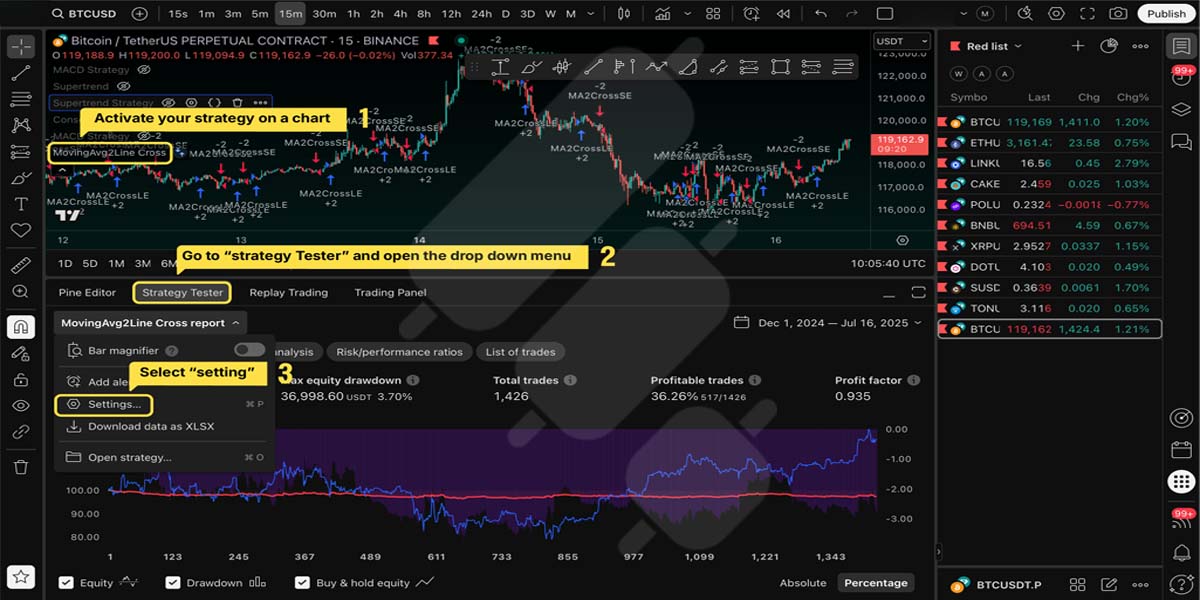
1. Activate your strategy on the chart. Then, go to “Strategy Tester” and open the drop-down window. Select “Settings”.
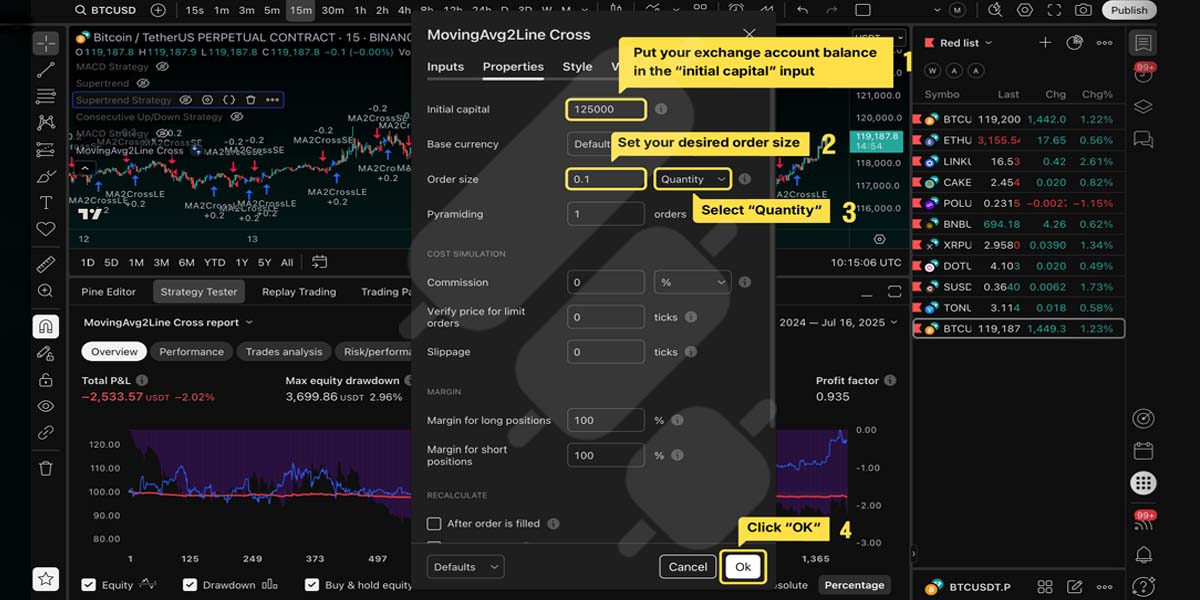
2. In the window that opens, go to the “Properties” tab. Here:
- Enter your exchange account balance in the “Initial Capital” field.
- Set your desired order size in the “Order size” field and select “Quantity”.
- Then click “Ok” to set it all up.
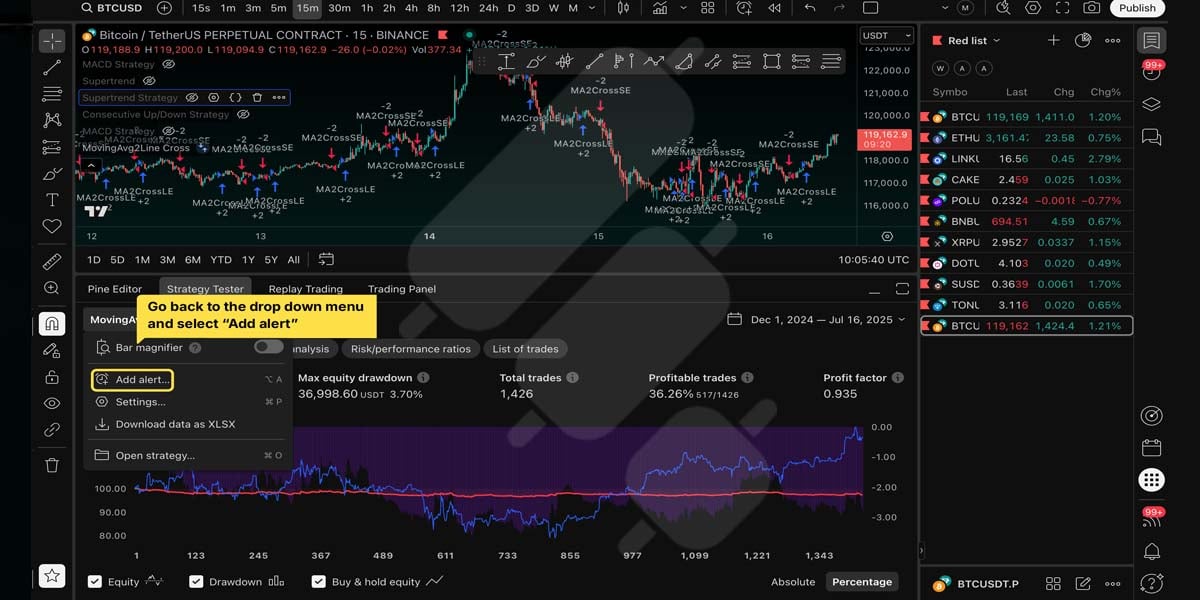
3. Go back to the drop-down menu and select “Add alert”.
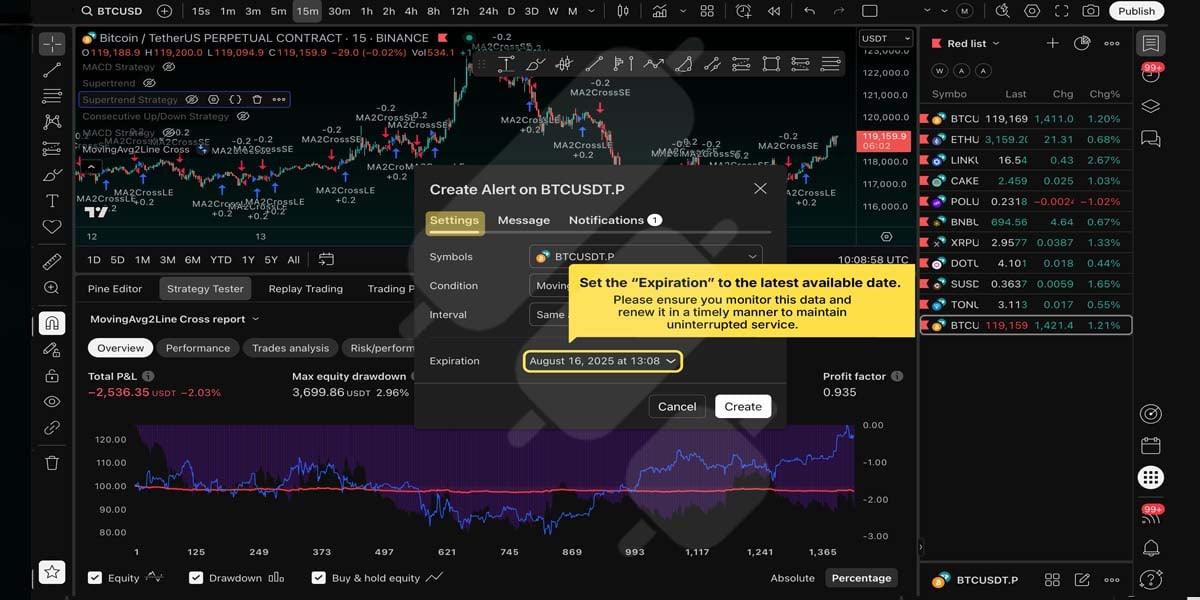
4. In the window that opens, go to the “Settings” tab and set the “Expiration” to the latest date available here.
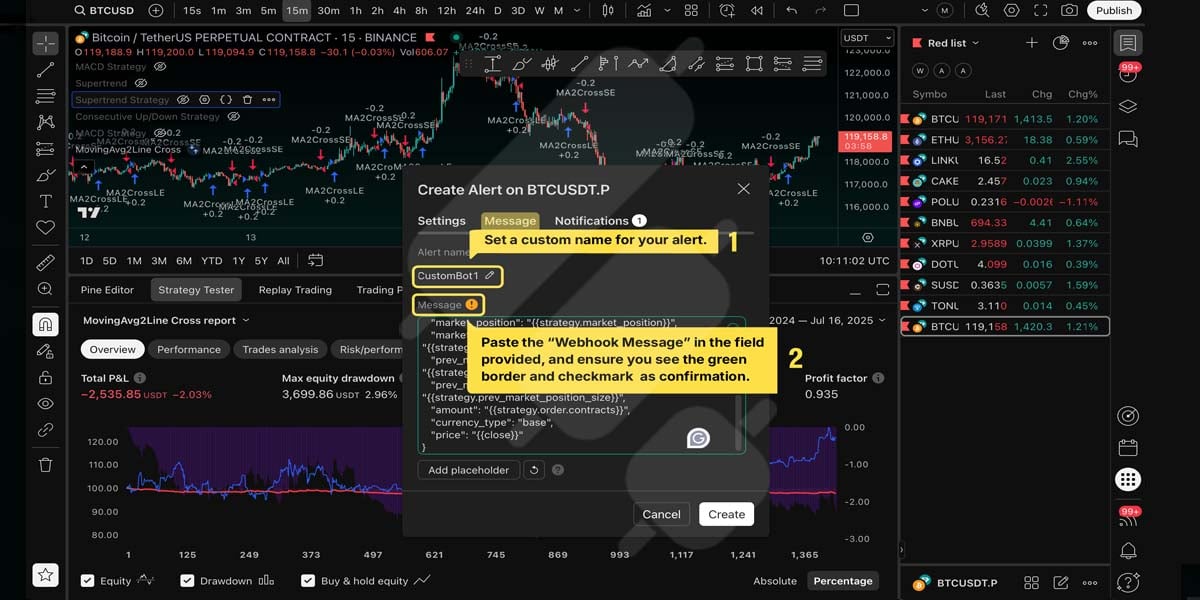
5. Now go to the “Message” tab and set a custom name for your alert. Then, paste your Finestel bot’s JSON payload into the “Message” field.
6. In the “Notifications” tab, check the Webhook URL box and paste the Webhook URL of your bot in the corresponding field. Click “Create” to save the alert.
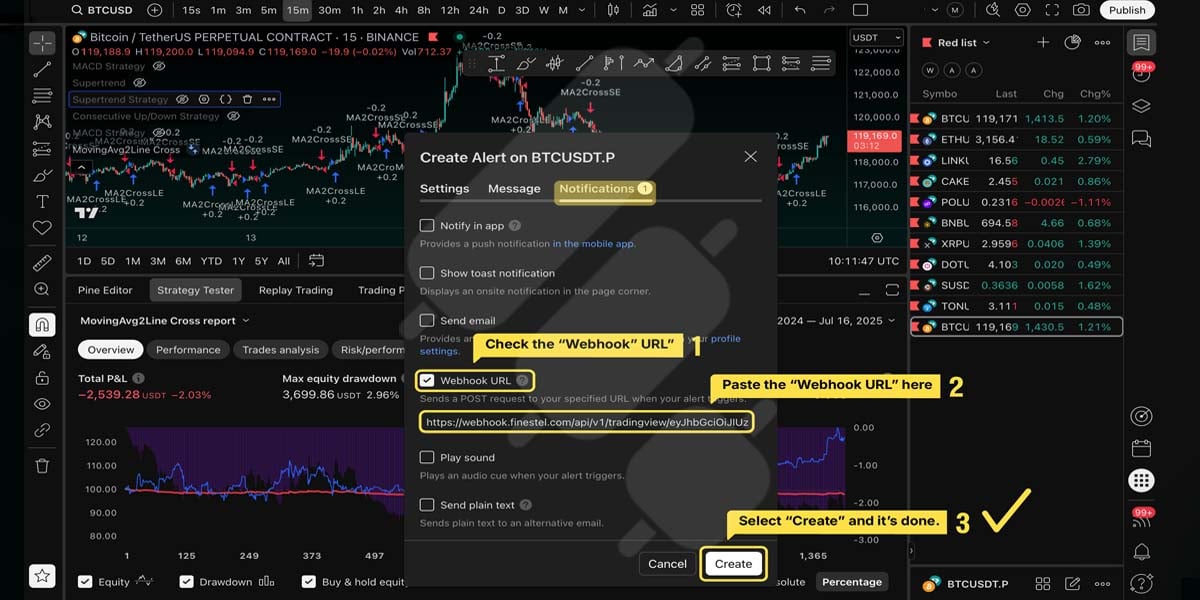
Now click “Initiate Bot” in Finestel to complete the setup.
How to Execute Advanced Orders and Strategies on Hyperliquid with Finestel
Finestel currently supports two advanced executions: DCA and TWAP, with Scale and Grid coming soon. You can use these trading strategies across Finestel’s trading terminal, signal bot, and TradingView bot, which we explained how to configure in the previous sections.
DCA
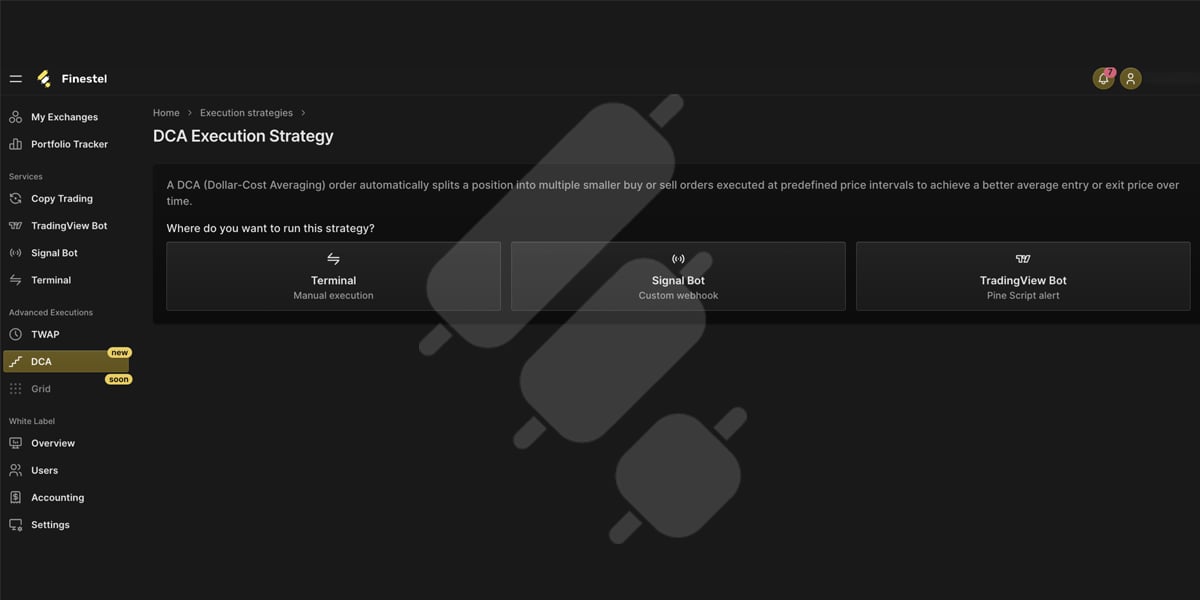
Finestel’s DCA Bot builds your position gradually. You can set a base order, followed by additional orders if price drops, so your average entry improves as the position fills. The take-profit level is recalculated automatically after every order, and the same execution strategy runs whether it’s triggered by a signal, a TradingView alert, or manually in the trading terminal.
To trade based on the DCA strategy in the Finestel dashboard:
- From the left-hand menu, choose DCA under the “Advanced Executions” section.
- Then choose where you want to run this strategy: Terminal, Signal Bot, or TradingView Bot.
- Selecting any of these tools will take you to its configuration page, where you can adjust the relevant settings.
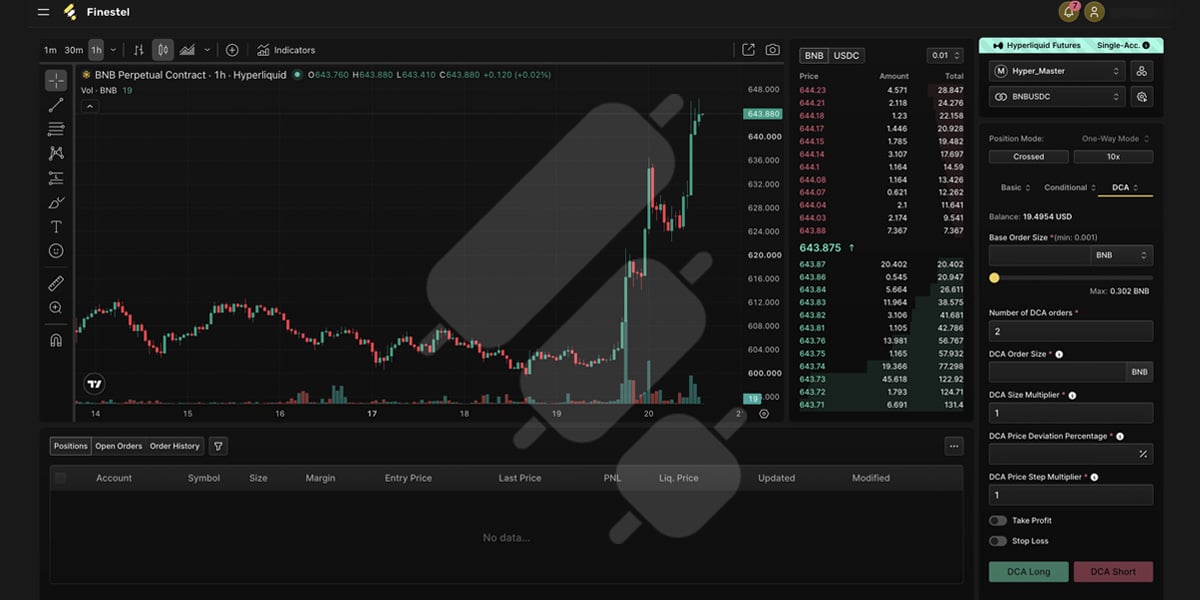
For example, if you want to use this execution strategy in the trading terminal, clicking on “Terminal” will direct you to the page where you should:
- Click “Select Accounts” and choose your desired Hyperliquid account, if it is not already selected.
- Choose the trading pair.
- Choose the “Isolated” or “Crossed” position mode and leverage, if you are trading futures.
- Then, configure the following DCA settings:
- Base Order Size
- Number of DCA orders
- DCA Order Size
- DCA Size Multiplier
- DCA Price Deviation Percentage
- DCA Price Step Multiplier
- Take-profit and Stop-loss (optional)
For a comprehensive guide on how to set the best DCA settings and strategies, we recommend reading our article in the Finestel blog.
TWAP
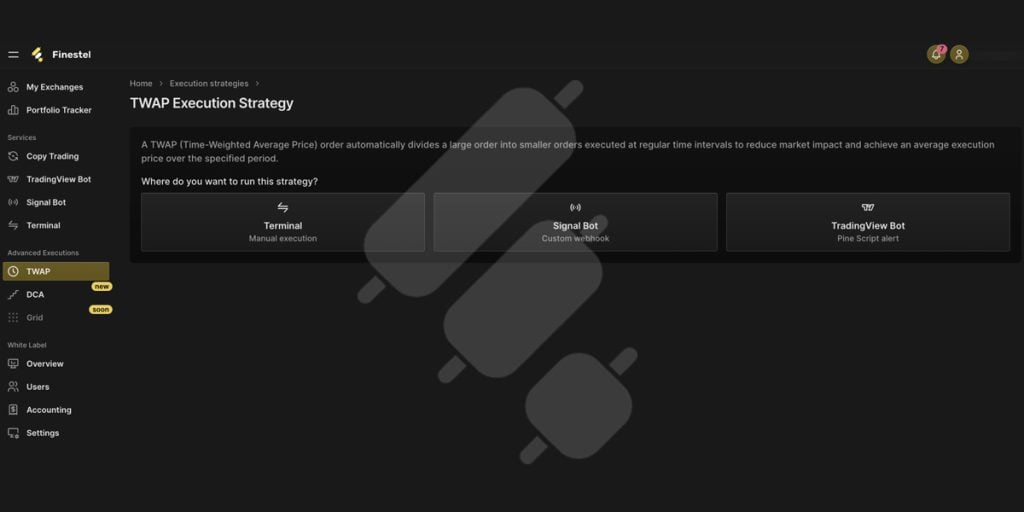
Even though Hyperliquid has recently added TWAP, Finestel’s TWAP lets you automate execution and start TWAP from external alerts, across multiple accounts at once; functionality that Hyperliquid does not currently support natively.
To trade based on the TWAP strategy in the Finestel dashboard:
- From the left-hand menu, choose TWAP under the “Advanced Executions” section.
- Then choose where you want to run this strategy: Terminal, Signal Bot, or TradingView Bot.
- Choosing each of these tools will direct you to its page, where there are different options and fields to configure.
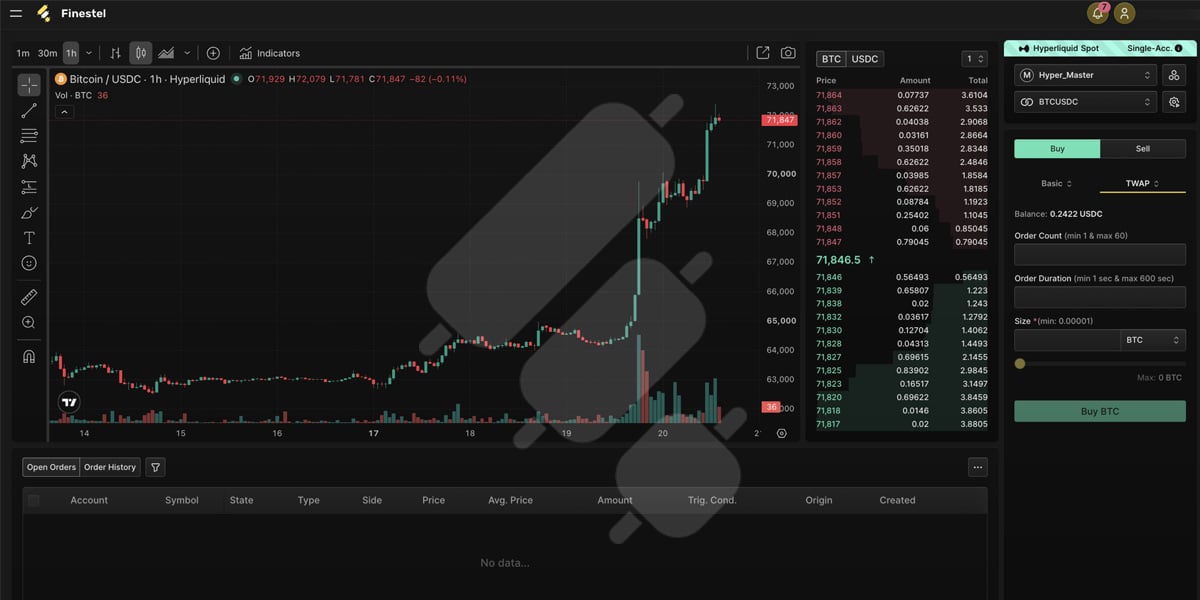
For example, if you want to use the TWAP execution strategy in the trading terminal, clicking on “Terminal” will direct you to the page where you should:
- By clicking on “Select Accounts”, choose your desired Hyperliquid account, if not selected already.
- Choose the trading pair.
- Choose the “Isolated” or “Crossed” position mode and leverage, if trading on the futures.
- Then, for the TWAP settings, enter:
- Order Count
- Order Duration
- Size
For a comprehensive guide on the best TWAP settings, we recommend reading our article at the link provided.
Finestel White Label for Hyperliquid Asset Managers
If you manage multiple Hyperliquid clients, using the standard Finestel dashboard may not be enough when you also want to offer a branded experience. Our White Label solution lets asset managers, trading firms, and other professional service providers offer Finestel’s trading, automation, portfolio tracking, and account management tools under their own brand.
This way, your clients can access a dedicated platform with your branding, while you continue using Finestel’s infrastructure to manage their Hyperliquid accounts and trading workflows.

As an asset manager or a seasoned trader managing multiple client accounts, you need to complete almost the same steps we explained in the previous sections. We will walk you through these steps again from the client’s perspective. Before you start, you’ll need:
- Your Finestel dashboard login with permission to manage client accounts.
- The client’s Hyperliquid main wallet address and API key/secret (or the ability to walk the client through generating one).
- A way to reach the client quickly so they can scan the QR code and sign the builder fee approval.
- The client’s wallet app (MetaMask, Coinbase Wallet, Phantom, Rabby, TronLink, or any WalletConnect-compatible wallet) installed and set up on Arbitrum
Here is an overview of what you and your clients need to do:
| # | Action | Done by |
| 1 | Get the client’s API key and wallet address. | You or the client |
| 2 | Add the account in Finestel and choose Hyperliquid | You |
| 3 | Click “Builder Fee” on the client’s account | You |
| 4 | Select a wallet connector | You |
| 5 | Share the QR code with the client | You |
| 6 | Scan the QR code and sign in the wallet app | Client |
Step 1: Get the Client’s API Key
Either walk the client through generating their Hyperliquid API key themselves (i.e., log in → API section → Create key), or have them send you their main wallet address and API key securely.
Step 2: Add the Client’s Account in Finestel
In Finestel, go to your client’s profile, click “Add Account”, then choose Hyperliquid from the list of supported exchanges, and click “Next”.
On the next screen:
- Choose an account name.
- Choose the copy trading role as “Copier”.
- Choose Spot, Futures, or Both as the exchange type.
- Enter the client’s main wallet address and API key, and save the connection.
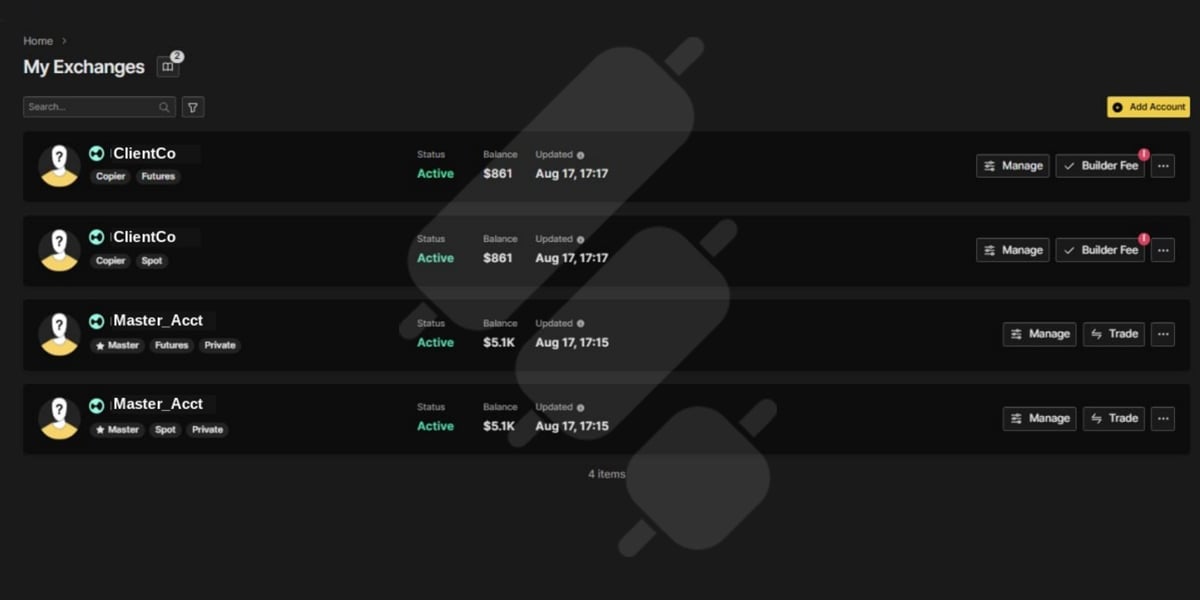
The account will appear in “My Exchanges” marked “Active”, with a red alert badge on Builder Fee until it’s approved.
Step 3: Approve the builder fee (Client Signs via QR Code)
To approve the builder fee:
- Click “Builder Fee”: On the client’s account row, click the “Builder Fee” button to open the approval window.
- Select a connector from the list: Finestel shows the client’s account and main wallet address, then a list of wallet connectors (Default Wallet, WalletConnect, MetaMask, Coinbase Wallet, Rabby Wallet, Phantom, TronLink). Pick the connector that matches how the client will sign; typically “WalletConnect” or “Default Wallet” if they’ll be scanning with a mobile wallet app.
- Share the QR code with the client: Selecting a connector generates a QR code. Send it to your client and ask them to open their wallet app, scan the code, and sign the builder fee approval message. This requires no gas and must be signed with the same wallet as the account’s main wallet address.
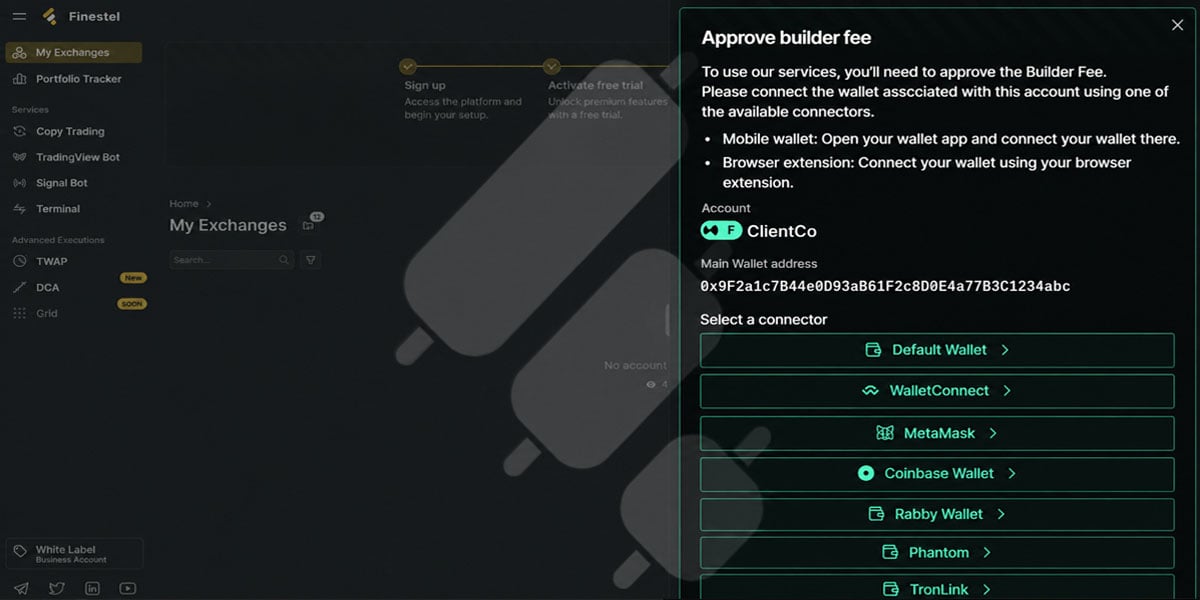
Once the client signs, refresh the account in Finestel. Then, the red alert badge on “Builder Fee” clears and the account is fully connected and ready to trade on their behalf.
Reminder: the builder fee signature must always come from the wallet controlling the account. You can set up the API key for a client, but only they can complete this signature.
How to View and Manage Your Hyperliquid Accounts and Portfolio
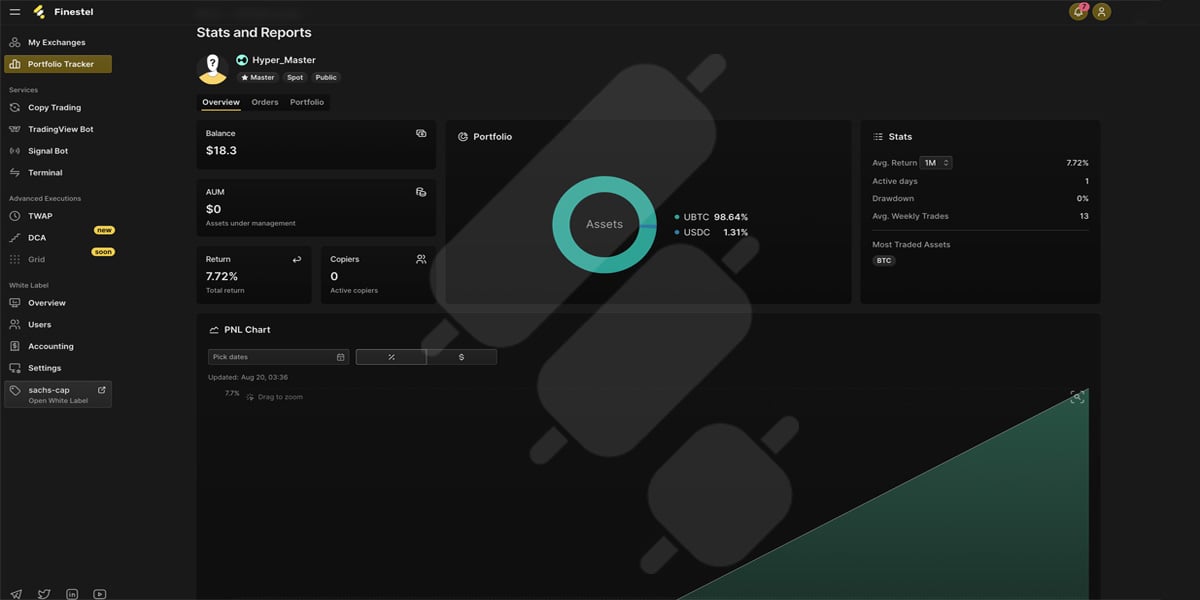
With Finestel’s Portfolio Tracker, you get a unified dashboard with a complete, real-time view across all your accounts in one place. To do this, click on “Stats and Reports” under your desired Hyperliquid account.
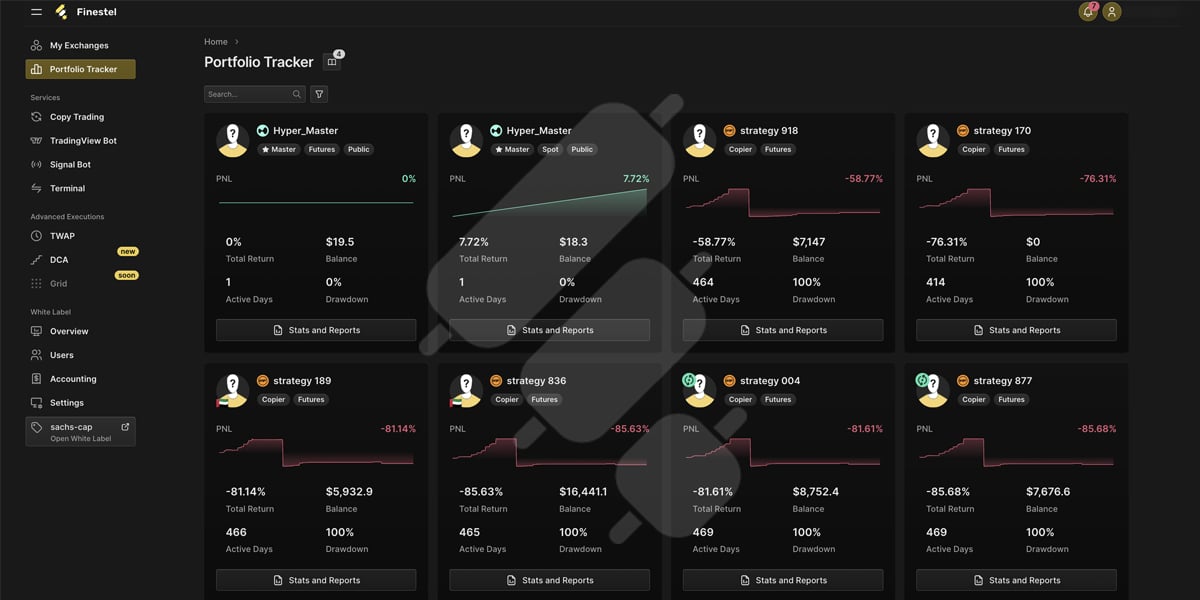
On the next screen, you can review and change the settings, including:
- Balances & Portfolios: See your total holdings across spot and futures accounts at a glance.
- Open orders & Positions: Monitor active trades and margin exposure in real time.
- Trade history & PnL: Review closed trades, realized profit/loss, and performance over any time range.
Changing Fees
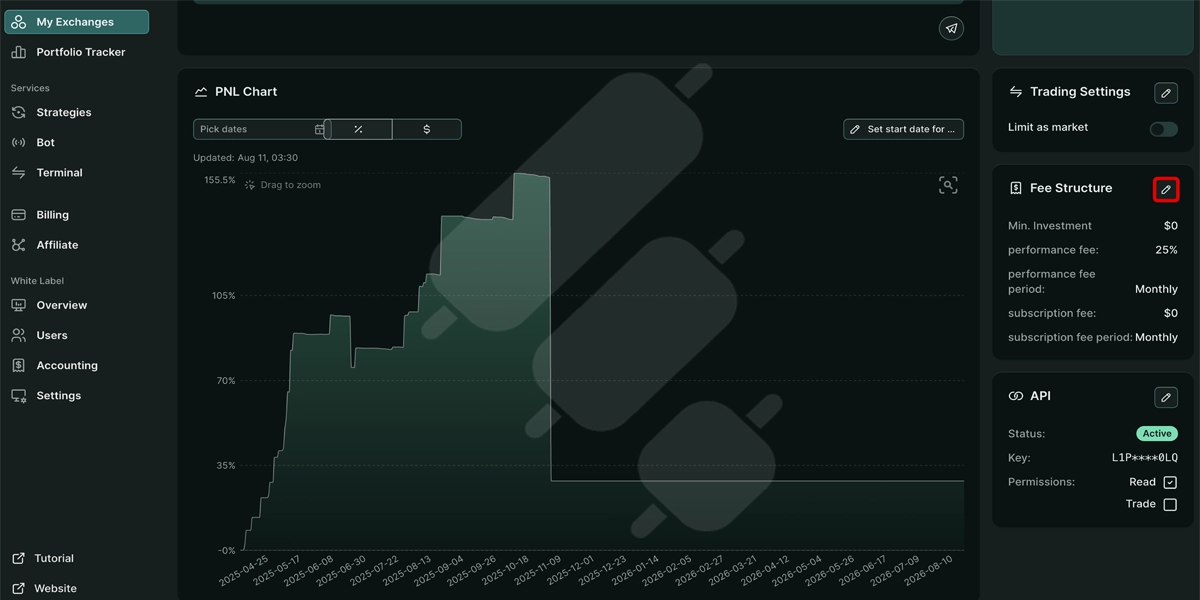
To manage the fees charged to your copiers, go to “My Exchanges” and click “Manage” next to the desired Master account.
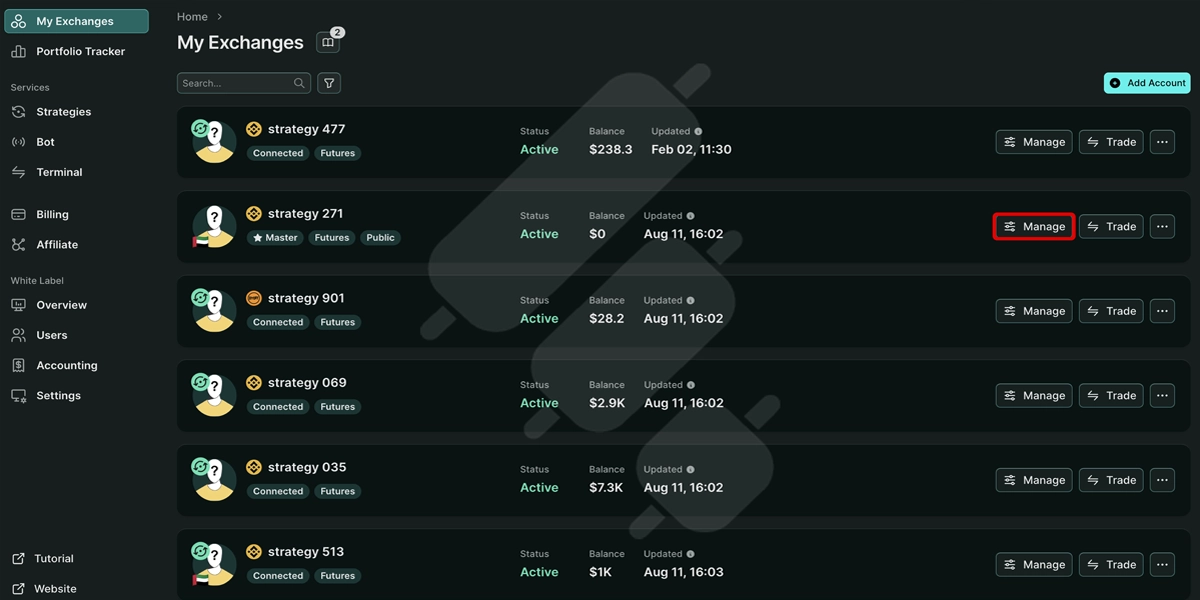
Then, scroll down the page and find “Fee Structure” in the dashboard on the right-hand side to view and change the following settings:
- Minimum and Maximum Investment
- Performance Fee percentage and period. If you are copying trades across your personal accounts, set it to zero.
- Subscription Fee amount and period, available exclusively to White Label users
Hyperliquid Account and API Security Considerations
When connecting Hyperliquid to Finestel, you use a dedicated API Wallet rather than sharing the private key of your main wallet. Hyperliquid API Wallets can execute trading actions on your behalf, but they do not have withdrawal permissions. This keeps fund custody with your Hyperliquid account while allowing Finestel to execute and automate trades through the API.
Still, treat your API Wallet private key as sensitive information. Anyone who gains access to it may be able to place or manage trades on your behalf, even if they cannot directly withdraw your funds. Never share it publicly or enter it into untrusted applications.
Finestel adds additional security measures around API-based account connections, including encryption of sensitive data at rest and in transit, two-factor authentication, and IP whitelisting.
If you no longer use an API Wallet, it is also a good idea to revoke its authorization from Hyperliquid and create a new one when needed.
Hyperliquid Trading Bot Risk Management
Before running automated Hyperliquid strategies through Finestel, we recommend applying a few risk-management measures to protect your portfolio:
- Start with limited capital: Run a new strategy with a small allocation first. This gives you a chance to verify order execution, position sizing, and bot behavior under real market conditions.
- Set position and leverage limits: Define a maximum position size and leverage level for each strategy. On perpetual markets, excessive leverage can lead to liquidation after a relatively small adverse price move.
- Define your maximum acceptable loss: Do not rely only on individual stop-loss orders. Set limits at the strategy or account level as well.
- Use stop-loss and take-profit rules: Make sure exit rules match the volatility and timeframe of the strategy. Stops that are too tight may be triggered by normal market noise, while overly wide stops can expose the account to unnecessary losses.
- Account for liquidity and slippage: A strategy that looks profitable at the signal level may perform differently once orders are executed.
- Monitor live execution, not just returns: Review rejected orders, partial fills, unexpected position sizes, and differences between intended and actual execution.
- Avoid concentrating risk in correlated strategies: Running several bots does not necessarily mean you are diversified. If they trade the same assets or react to the same market conditions, they may all increase exposure at the same time.
- Review your strategies after major changes: Recheck your Hyperliquid trading strategies and bot settings when Hyperliquid changes market parameters, available assets, API behavior, or other conditions that could affect execution.

Common Hyperliquid Connection Issues on Finestel
Connecting Hyperliquid to Finestel is usually straightforward, but if your account does not connect or work as expected, check the following:
Incorrect API Wallet Address or Private Key
Make sure you have entered the API Wallet address and its corresponding private key correctly. Do not confuse your main Hyperliquid wallet address with the API Wallet address generated for API access.
API Wallet Is Not Authorized
Generating an API Wallet is not enough on its own. You also need to authorize it on Hyperliquid before using it with Finestel. If you skipped the authorization step, go back to the API section on Hyperliquid and complete it.
Account Data Is Not Showing Correctly
The API Wallet is used to sign actions on behalf of your Hyperliquid account, but it is not the account whose balances, positions, and orders are being managed. Make sure the connection is associated with the correct Hyperliquid master account or sub-account.
Wallet Prompts to Switch Networks
The builder fee approval is signed on Arbitrum. Make sure the network switch prompt is accepted in the relevant wallet, then try signing again.
Builder Fee Badge Does Not Clear After Signing
Refresh the “My Exchanges” page. If it still shows pending after a minute, reopen the “Builder Fee” window and confirm that the signature was completed in the client’s wallet.
You or Your Client Is Unsure Which Wallet App to Use
Any wallet that supports WalletConnect works. If you are not sure, “Default Wallet” or “WalletConnect” are generally the most straightforward options to select in step 2.
Final Thoughts
Finestel turns Hyperliquid into a more flexible trading environment for traders who need more than manual execution on a single account. After connecting your Hyperliquid account, you can trade from the terminal, automate strategies through Signal Bot or TradingView, copy trades across multiple accounts, use DCA and TWAP executions, and monitor account performance from one dashboard.
Finestel’s White Label setup also enables asset managers to handle multiple client accounts using the same infrastructure. Regardless of the workflow you select, begin with a small allocation, test your execution settings, and only scale once you’re confident everything is working as intended.
FAQs
Can I connect multiple Hyperliquid accounts to Finestel?
Yes. You can connect multiple Hyperliquid accounts to Finestel and manage them from one dashboard. You can also organize accounts into trading groups for easier multi-account execution.
Do I need to share my main wallet private key with Finestel?
No. Hyperliquid uses a dedicated API Wallet for API-based trading. You provide the required API credentials without sharing the private key of your main wallet.
Can I automate Hyperliquid trades with TradingView on Finestel?
Yes. Finestel’s TradingView Bot lets you connect TradingView alerts to your Hyperliquid account through webhooks and automatically execute orders on all linked accounts when your strategy fires an alert.
Does Finestel support Hyperliquid copy trading?
Yes. Finestel’s Trade Copier lets you use one Hyperliquid account as the master and replicate its trades across multiple copier accounts.
Can I use DCA and TWAP on Hyperliquid through Finestel?
Yes. Finestel supports DCA and TWAP execution through the Trading Terminal, Signal Bot, and TradingView Bot. This also lets you combine these execution methods with automated signals.
Can asset managers manage client Hyperliquid accounts through Finestel?
Yes. Asset managers can connect and manage client accounts through Finestel and use the White Label solution to offer the platform’s trading, automation, reporting, and account management tools under their own brand
Do I need to share my main wallet private key?
Is Finestel non-custodial on Hyperliquid? Yes. Finestel trades through a Hyperliquid API wallet, which can place and manage orders but has no withdrawal permission. Your funds stay in your own Hyperliquid account.





Leave a Reply