
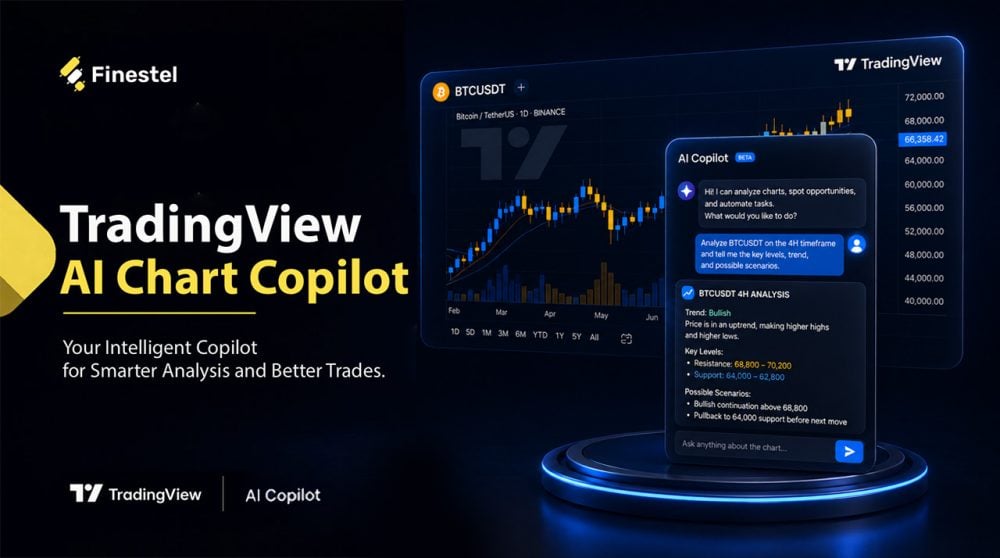

Technical analysis requires interpreting large amounts of market data. Platforms like TradingView have made chart analysis accessible to millions of traders around the world, but understanding their complex signals still needs time and experience. On the other hand, we have artificial intelligence (AI) which is revolutionizing all industries, and why not the technical analysis process? One of the latest developments in this space is TradingView AI Chart Copilot, which is an AI-powered assistant designed by TradingView to let users analyze charts using natural language.
Given the practical value of this relatively new tool, and since not all traders know how to use it yet, we have dedicated this guide to TradingView AI Chart Copilot. We will explain everything you need to know, including its features, installation process, advanced practical use cases, limitations, and also alternatives for traders looking for different objectives.
What Is TradingView AI Chart Copilot?
TradingView AI Chart Copilot is an AI-powered assistant built as a browser extension and promoted by TradingView, designed to help users analyze financial charts through conversational prompts. Instead of relying only on traditional chart tools, traders can communicate with the AI assistant and ask any questions. It actually works as an AI layer on top of the TradingView charts.
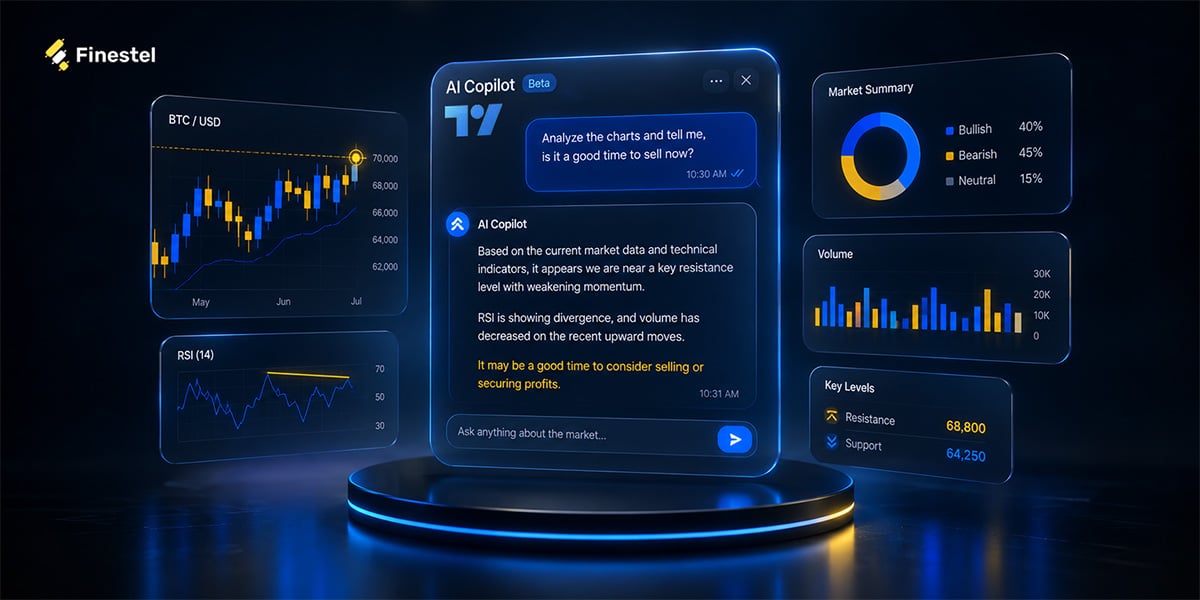
TradingView Remix AI Chart Copilot makes technical analysis easier by translating complex chart information into understandable explanations. For example, a trader can ask: “Why is Bitcoin losing momentum?”, or, “Explain the current trend on this chart.”
However, it is important to know that TradingView AI Chart Copilot is not a trading robot. It does not guarantee profitable trades and does not replace proper risk management or trader research.
TradingView AI Chart Copilot is in the Beta Phase Now
It’s worth noting that TradingView AI Chart Copilot is currently introduced as a public beta, so is still being developed and improved based on user feedback. As the official TradingView website states:
“We’re launching the Chart Copilot as a public beta because we believe AI-assisted charting will fundamentally change how traders interact with markets, and we want to build that future together with our vibrant community. Your feedback during the beta will directly shape the experience as we work toward bringing TradingView AI natively into the side panel across all browsers and the desktop app.”
How to Install TradingView AI Chart Copilot
The TradingView AI Chart Copilot installation process is simple and doesn’t take more than 30 seconds. To install and start using it, follow these steps:
Step 1: Add the TradingView AI Chart Copilot Extension
The first step is to install the official AI Chart Copilot extension. For this, all you need to do is click on this link and use the “Add to Chrome” button.
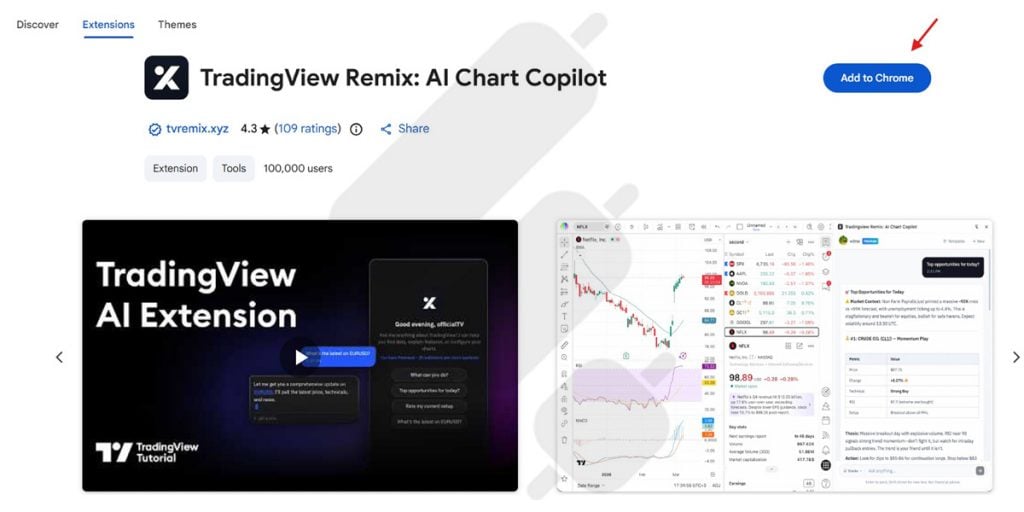
The tool is designed to work with Chromium-based browsers, including Google Chrome, Microsoft Edge, Brave, and other Chromium browsers. As the technology develops, TradingView may expand AI features directly into its platform interface.
Step 2: Open TradingView
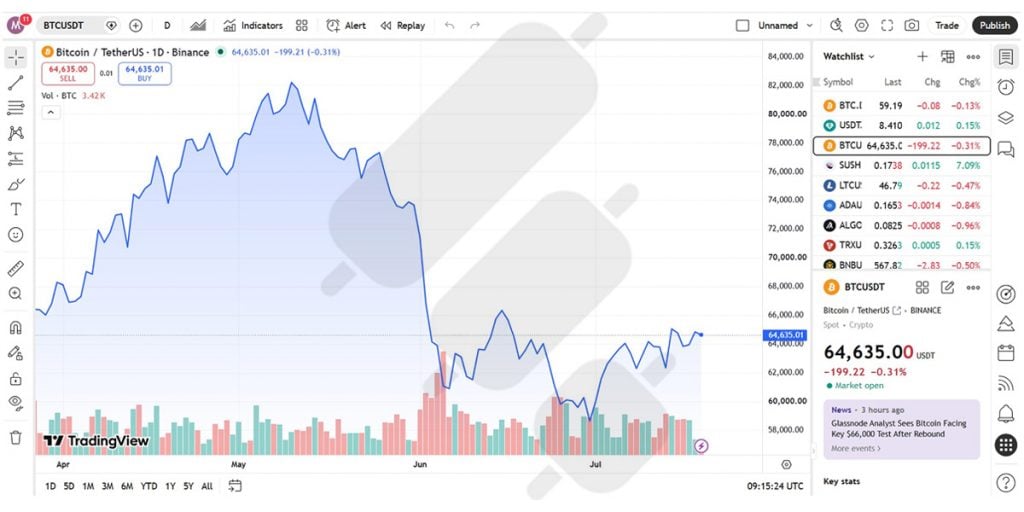
Navigate to tradingview.com and open the chart you want to analyze. For example, if you want to analyze the Bitcoin chart, just go to the markets, select crypto, and click on the BTCUSDT chart.
Step 3: Launch AI Chart Copilot
Click on the extension icon and open it as follows:
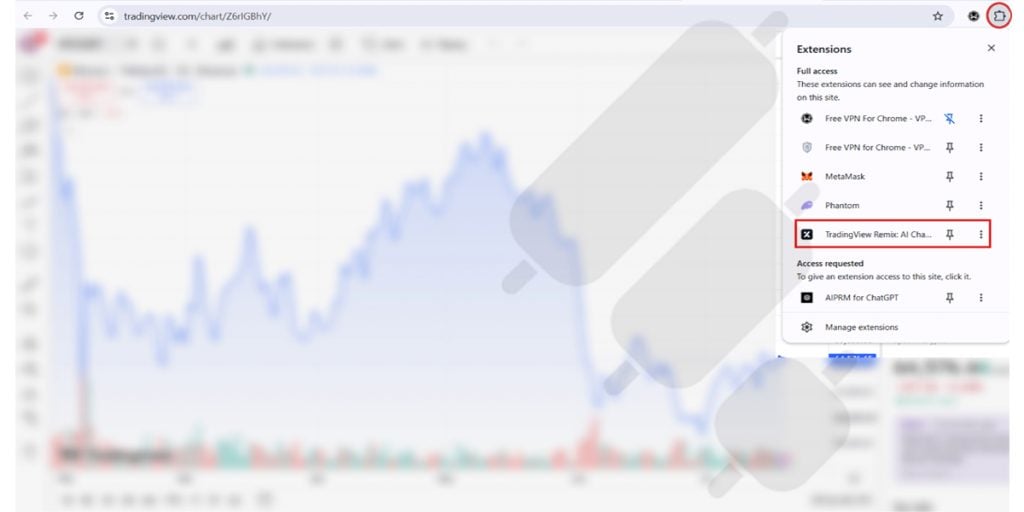
Choose a method for signing in (with Google or Email), and once done, your assistant is ready to help you with your trades.
Step 4: Start analyzing charts
Now you can begin asking questions about your charts. Just type your questions in the chat box highlighted below, and the tool will help you with anything in your mind.
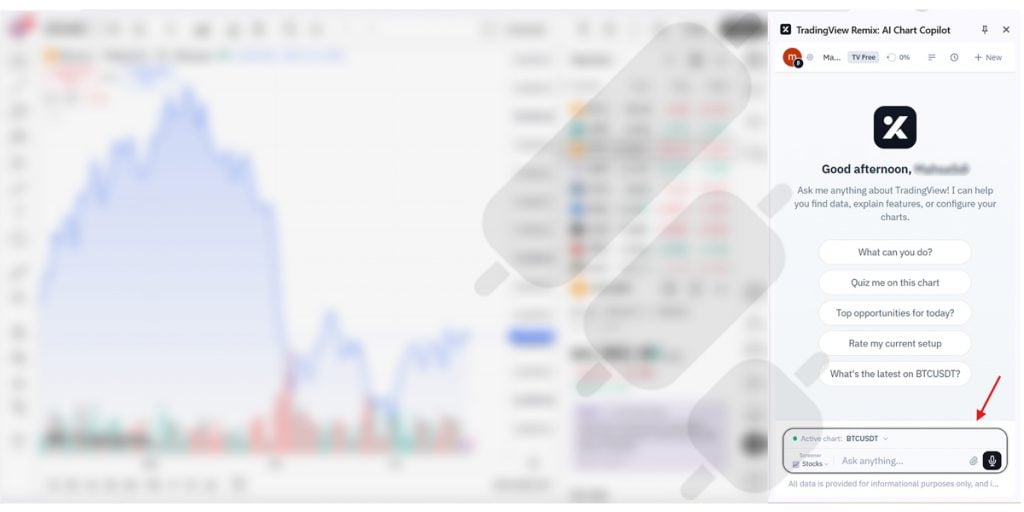
It also provides some suggested prompts to help you get started:
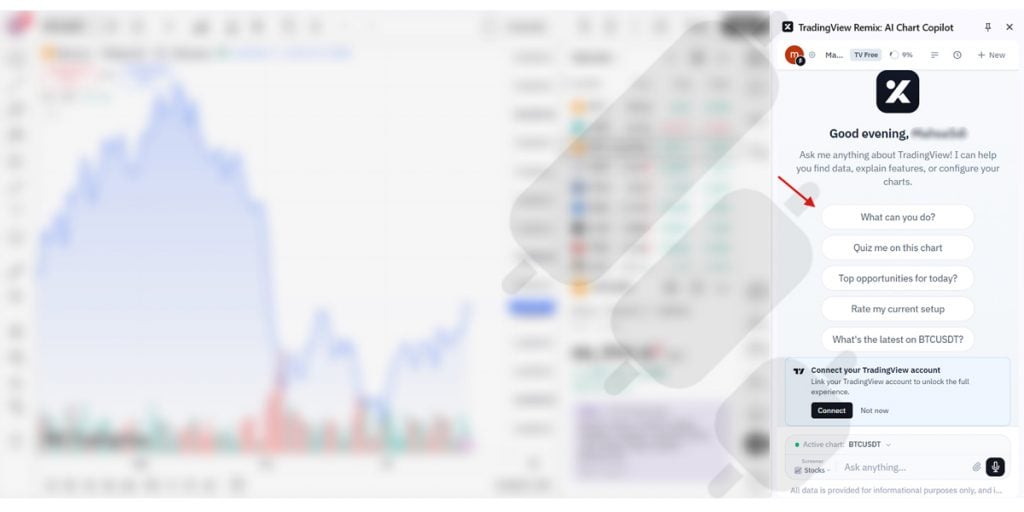
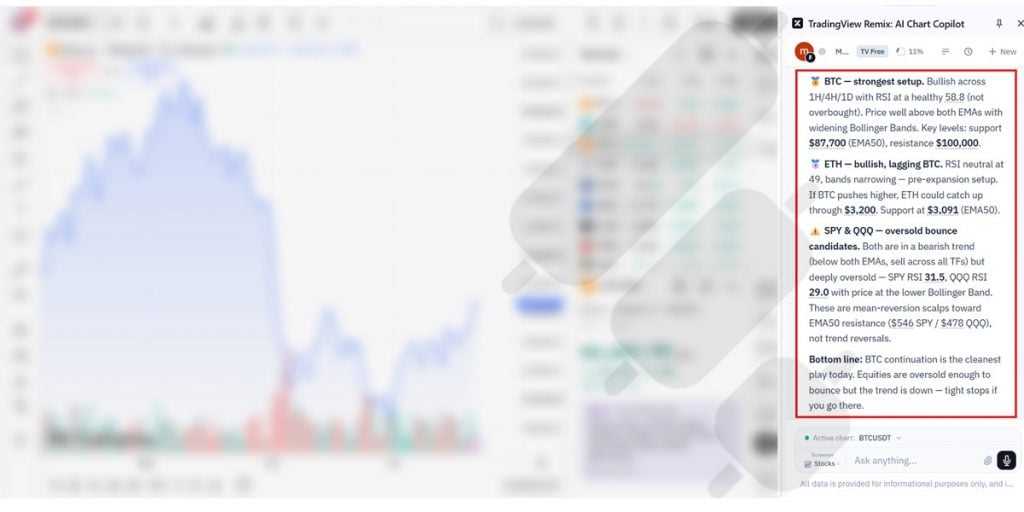
Let’s click on “Top opportunities for today?”, and here is how it guides us on today’s opportunities after thoroughly analyzing market data:
Note: Pay attention to the weekly usage limit
A point worth mentioning here is that TradingView Remix AI Chart Copilot has a weekly usage limit, which is different for free, essential, plus, premium, and ultimate accounts. The limit is as follows:
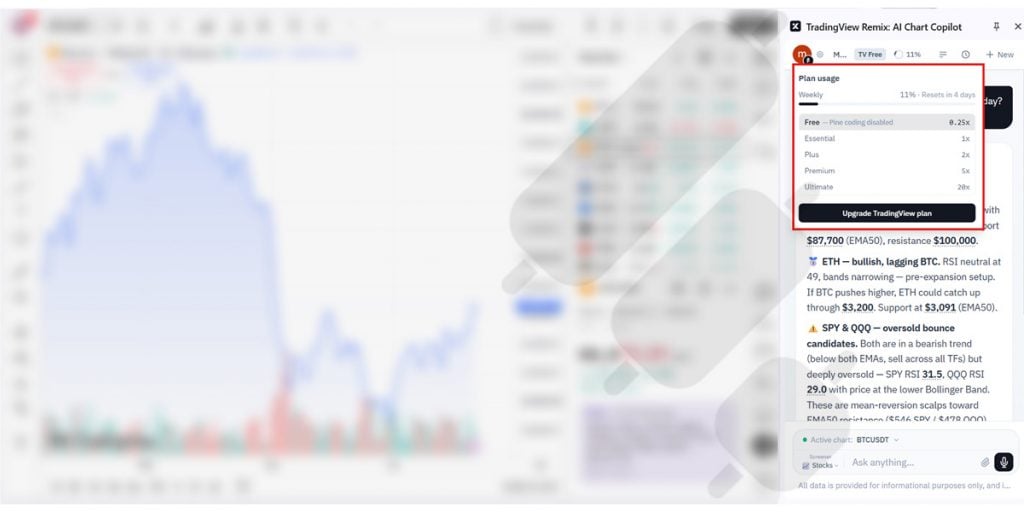
So, watch for your usage (especially in free accounts).
Another important note: Usage scales weekly with your existing TradingView subscription. It doesn’t require a separate billing.
TradingView AI Chart Copilot Advanced Tutorial
We just went through all you need to basically use this powerful tool. But this extension can be far more useful than a chat box that describes candles. In this section, we’ll walk through the advanced features one by one, with prompt examples you can copy.
1. Chart Automation with Plain English
The Copilot reads the live state of your chart, including the active symbol, the timeframe, the TradingView indicators you have applied, and the visible price range. It can also change that state for you.
So, instead of clicking through menus, you can try prompts like:
- Switch to ETHUSDT on the 4-hour timeframe.
- Add RSI 14 and a 200 EMA, then remove the MACD.
- Change the chart type to Heikin Ashi.
- Draw the main support and resistance levels on this chart.
2. Alert Management in Bulk
Alert handling is where most traders lose time on TradingView, because each alert normally requires its own dialog. The Copilot creates them in a batch, and this is a great help. Here is how it can work:
- Ask for a technical breakdown: “Give me the key support and resistance levels on BTCUSDT daily.”
- Follow up with: “Set a price alert at every level you just listed.”
- Manage them conversationally: “List my active alerts on BTCUSDT,” “Pause the alert at 92,000,” “Delete all alerts older than a week.”

3. The Same Unified Agent on Telegram
TradingView Remix has a Telegram bot at @TVRemixBot. You can message it directly for quotes, analysis, alerts, and all the same capabilities you get in the extension. It’s the same unified agent, so no separate setup is needed beyond finding the bot and starting a chat.
4. Screener and Watchlist Scanning
The TradingView Remix AI Chart Copilot can query TradingView’s screener in natural language and run analysis across a watchlist. Some useful prompts for this feature:
- “Show me US stocks making 52-week highs with volume above average.”
- “Filter that list to technology names with a market cap over 10 billion.”
- “Scan my crypto watchlist and tell me which pairs are near a breakout.”
Results are clickable, so you can jump straight to a chart and continue the conversation on that symbol.
5. MCP Server Integration for Custom Data
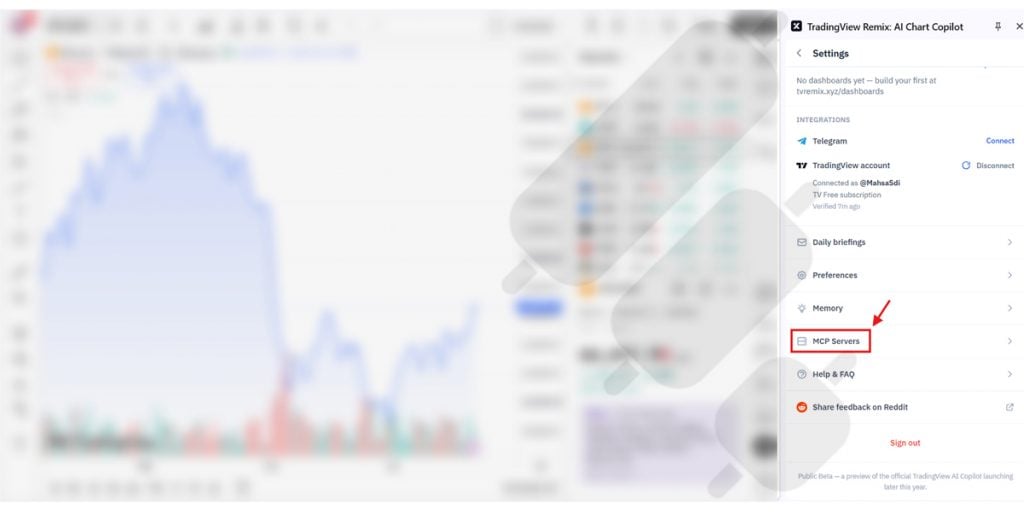
This is the most advanced feature in the beta and the least documented. MCP, which stands for Model Context Protocol, lets you attach your own tools to the assistant: a proprietary analytics API, a database, a brokerage connector, or any third-party service that exposes an MCP endpoint.
To add one, open the extension menu, go to MCP Servers, click Add MCP Server, enter a name and the server URL, then pick an authentication method (none, API key in the URL, bearer token, or OAuth 2.1).
6. Pine Coding (Not available for free accounts)
Pine coding is the single feature that justifies a paid TradingView plan for Remix users. Pine Script coding is coding in TradingView’s own programming language to build custom chart indicators and strategies that run on TradingView’s price data. If you are a developer or you are interested in building customized indicators, that could be a great choice for you.
Trade Ideas vs TrendSpider vs TradingView AI Chart Copilot
These three names dominate every best AI trading tool list, but the fact is that they are not really competing for the same job. Comparing them on one factor alone produces a nonsense answer. The useful question is what kind of AI each one actually is.
| Trade Ideas | TrendSpider | TradingView AI Chart Copilot | |
| AI Type | Rules-based signal engine | Automated TA + ML strategy | Conversational chart agent |
| Core Outputs | Ranked trade setups | Detected tradelines | Natural-language analysis |
| Markets | US equities only | Multi-asset | Multi-asset |
| Entry Price | $127 per month (Standard) | $82 per month (Standard) | $0 |
| Top Tier Price | $254 per month (Premium) | $321 per month (Advanced) | $0 |
| Free Trial | None | Yes | Yes |
| Platforms | Windows | Browser | Browser |
Now that we have taken a quick look at each of these popular options, let’s dive into each of them to see which one is for whom.
Everything below this point is our own assessment. We have run all three of these tools against live charts and have focused on the differences that matter in daily use.
Trade Ideas
Holly AI has been scanning US markets since 2016 and runs a large library of strategies. This means more maturity and also a downside: Trade Ideas has seen crashes that newer tools trained on post-2020 data have not.
Trade Ideas does not answer questions or reason about a filing against a price level. It emits signals. Those signals are also shared across all subscribers.
There are two more practical frictions: US equities only, and Windows-first, with Mac users pushed to Parallels or a cloud desktop. There is no free trial, so evaluating it needs real money.
Our view: the shared-signal problem is the one most reviews skip. If several thousand subscribers receive the same alert on a thin small-cap at the same second, you are not early to that move, you are the liquidity for whoever was. On liquid large-caps this matters far less. That is the filter we would apply before paying $254 a month.
TrendSpider
TrendSpider automates the technical analysis itself. Automated trendline detection draws large numbers of lines per chart alongside support, resistance, and Fibonacci levels across multiple timeframes. The entry price is much less than Trade Ideas. It helps you interpret; it does not decide.
Our view: the metered AI messages are the cost line that catches people out. The headline plan price is not what you end up paying if you actually lean on the AI layer daily. Budget for the add-on or accept that you will ration your questions.
TradingView AI Chart Copilot
The Copilot is the only one of the three that works inside the charting platform most traders already use. It reads live chart state and both analyzes and acts. It is also the only one that is free. As we previously said, usage scales weekly with your existing TradingView subscription rather than adding a separate bill, and even the free account can help you.
The Honest Positioning
Pick Trade Ideas if you are an active US equity day trader who wants setups delivered. Pick TrendSpider if you want to build and backtest your own systematic edge. Pick the TradingView AI Copilot if you want a fast analytical layer on charts you are already reading.
By the way, you can use all of them together. Nothing prevents running the Copilot on your TradingView charts while you are a Trade Ideas user.
Execution is Where All Three Tools Stop
All three tools above end at a conclusion. After that, you open your exchange and place the order yourself. On one account during market hours, that is fine. The problem arises when the same setup has to run across a personal account and a client account, or when the alert fires at 3 a.m. in your timezone.
How Finestel Can Help Here
Finestel is the layer that sits after the analysis. Our TradingView Bot turns your chart alerts into real trades. Any Pine Script strategy or indicator alert can fire an order on Binance, Bybit, OKX, KuCoin, Gate, Bitget, Kraken, or Hyperliquid trade automation, on one account or spread across many at once.
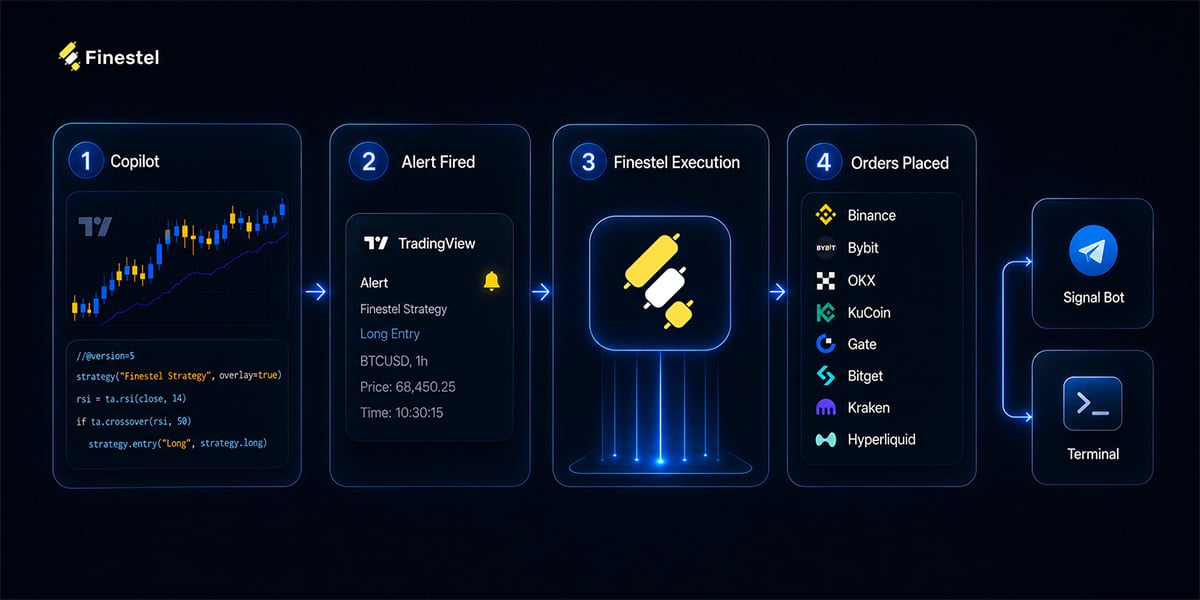
The flow is simple: Copilot helps you build and refine your Pine logic, TradingView fires the alert, then Finestel places the trade. You can use simple orders such as Market and Limit, or use more advanced ones including TWAP and DCA execution. It all runs on exchange API keys, so your funds stay in your own account. By reading our TWAP order strategy guide, you can learn how to execute large trades gradually while reducing market impact and slippage.
There’s also a signal bot for alerts from Telegram or your own code, and a trading terminal for placing manual orders across several accounts at the same time.
Who this isn’t for: If you trade one account by hand, a few times a month, and you’re usually at your desk when your setup hits, you don’t need an execution layer. You can tick with Copilot and your exchange.
Also worth saying: automation won’t fix a bad strategy. If your system loses money, automating it just loses money faster and around the clock. Test it first.
If it does fit, the free trial lets you connect one account and watch an alert become a filled order before you pay anything.

Is TradingView AI Chart Copilot the Best Free AI Trading Tool?
Short answer for chart-based analysis: yes. However, that answer needs more exploration.
TradingView AI Chart Copilot does not have a separate subscription or offer a limited trial period. All features are available across TradingView plans, with one exception: the weekly request limit depends on the TradingView plan you already have.
Free users get a basic allowance, while Premium users get a much larger limit that most people are unlikely to reach. Compared with other tools that charge $89–$254 per month for fewer features, this offers much better value.
The one hard gate is Pine Script authoring, which requires Essential or above. Free accounts can read and explain scripts but cannot write or modify them. If code generation is the reason you are here, the tool is not free for you. It costs whatever the Essential tier costs, which is still far below every paid alternative in this comparison.
It does not autonomously generate trade ideas the way Holly does. It does not train ML models the way TrendSpider’s Strategy Lab does. It does not execute. And the whole thing runs as a Chromium extension in public beta, developed by a third party and promoted by TradingView ahead of native integration. Beta status means the feature set and the usage model can change, and both already have once.
Conclusion
In this article, we explored TradingView AI Chart Copilot from the ground up. We explained what this AI assistant is, how it works, how to install it, and how traders can use it for chart analysis. We also compared it with other AI trading tools to understand where each of them fit in the trading practice.
TradingView AI Chart Copilot stands out because it works alongside your existing chart analysis instead of replacing it. It answers what you want and helps you understand indicators without adding another expensive tool. However, as the name suggests, this is an ASSISTANT. It supports your decisions, but shouldn’t replace your own analysis and validation.
FAQ
Is TradingView AI Chart Copilot free?
Yes, TradingView AI Chart Copilot is available for free, but the weekly usage limit depends on your existing TradingView subscription. Some advanced features, such as Pine Script generation, require a paid plan.
Is TradingView AI Chart Copilot a trading bot?
No. It is not an automated trading bot. It cannot execute trades or manage your portfolio automatically.
Which browsers support TradingView AI Chart Copilot?
It works with Chromium-based browsers, including Google Chrome, Microsoft Edge, and Brave.
Is TradingView AI Chart Copilot available on mobile?
Currently, the tool works mainly as a browser extension. TradingView may expand AI features into more platforms in the future.
What happens when I hit my weekly request limit on TradingView AI Chart Copilot?
Requests stop until the weekly window resets. There is no option to buy extra requests separately, because the allowance is tied to your TradingView plan rather than billed on its own. The only way to raise the limit is to upgrade your TradingView subscription.



Leave a Reply